
Learn how to review negative feedback, open the appeal flow, select a review to challenge, and purchase the CrushFix service for $295 per review.
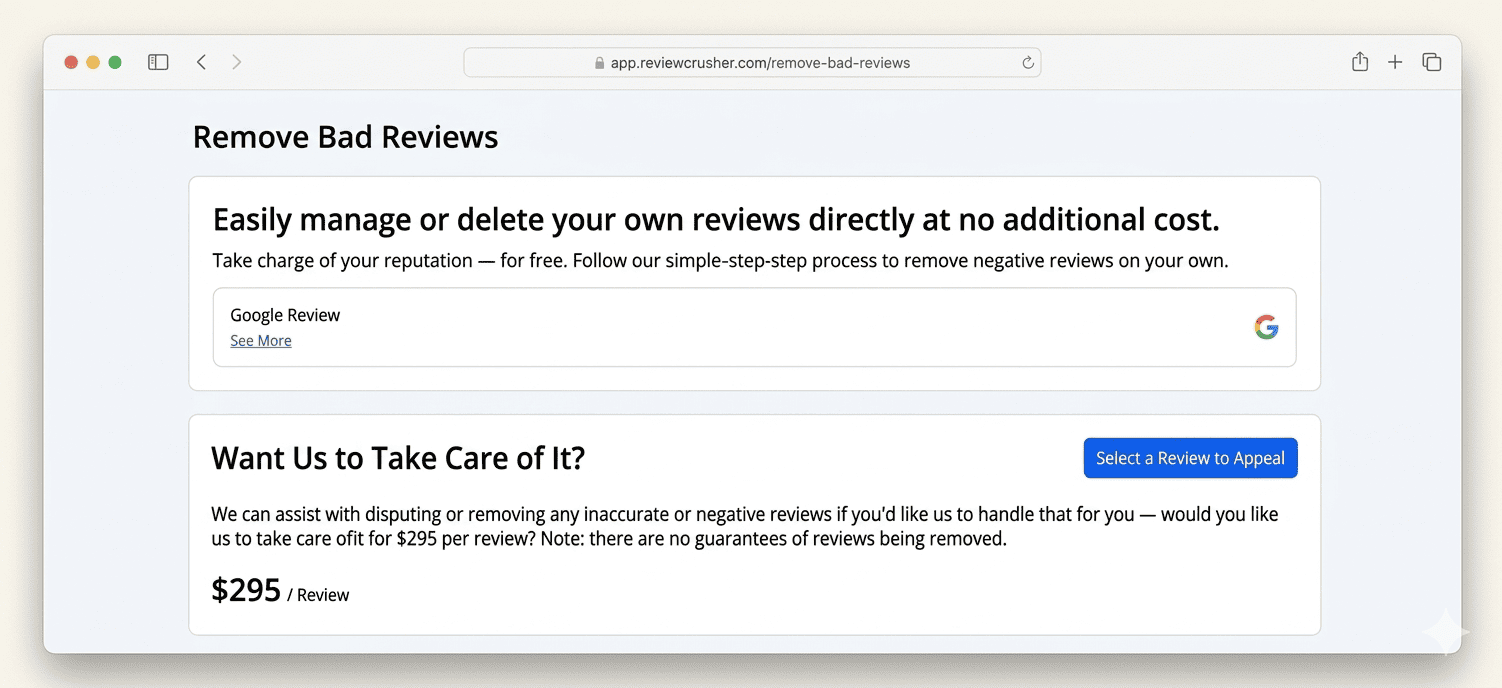

The Remove Bad Reviews section helps you deal with unwanted reviews in two ways:
From the screenshots, this page focuses on Google Review and also offers a paid service called CrushFix.
Open the left sidebar and go to:
Remove Bad Reviews
From this area, you can:
The main page has 2 visible sections.
The first card explains that you can manage or delete your own reviews directly and follow a step-by-step process.
In the screenshot, this card shows:
Use See More to open more information about the Google review removal process.

Based on the screenshot, Google is the visible review source shown on this page.
The second card is titled:
Want Us to Take Care of It?
This section explains that ReviewCrusher can assist with disputing or removing inaccurate or negative reviews for a fee.

The screenshot shows:
It also clearly states:
Use this option if you want ReviewCrusher to handle the challenge process for you instead of doing it yourself.
To begin the paid appeal process, click:
Select a Review to Appeal
This opens the reviews list where you can choose a specific review to challenge.
After opening the appeal flow, the screenshots show a Reviews page.
This page includes:
At the top of the Reviews page, there are two dropdown filters:
Use these to narrow the list of reviews before selecting one to challenge.
For example, this can help you:
The screenshots show these filters, but they do not show the full dropdown options.
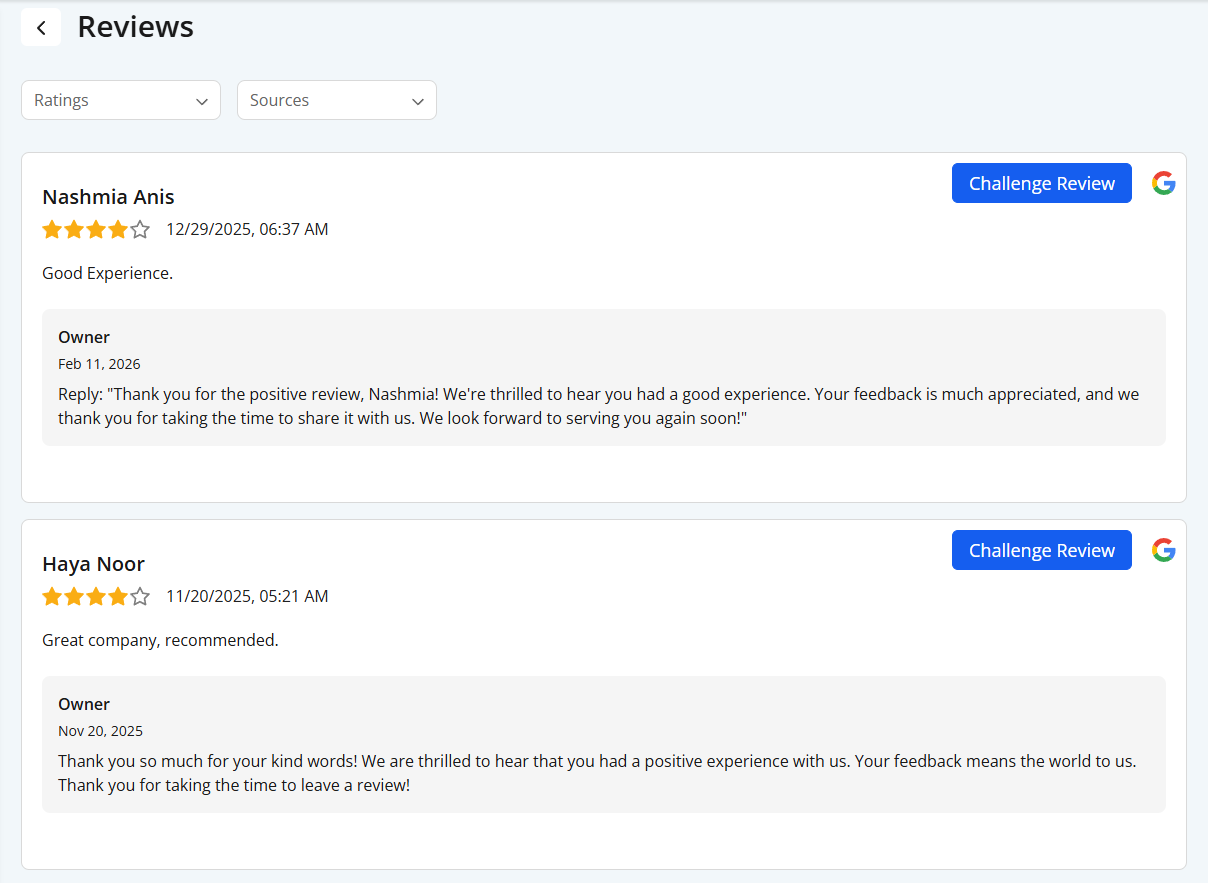
Each review appears as a large card with visible details.
From the screenshots, a review card can include:
Examples shown in the screenshots include:
This layout helps you review the full context before starting an appeal.
The screenshots show that review cards can display an Owner response section.
This block includes:
This is useful because it lets you see whether the business already responded before deciding to challenge the review.
To move forward with ReviewCrusher’s paid appeal service, click:
Challenge Review
on the review you want to dispute.
This opens a payment confirmation step.
After clicking Challenge Review, the screenshots show a modal titled:
Make Payment
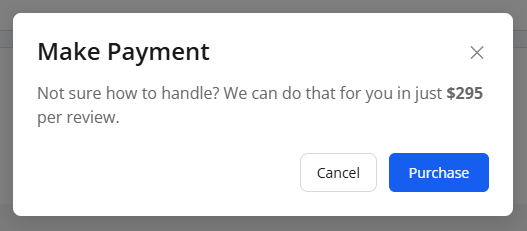
The message in the modal says ReviewCrusher can do that for you for:
$295 per review
The modal includes:
Use:
If you continue, the screenshots show a checkout page titled:
ReviewCrusher AI - CrushFix
This checkout page appears to process payment for the review appeal service.

The checkout shows a service selection area with:
The description shown in the screenshot explains that this service is for removing bad reviews and that ReviewCrusher will handle the appeal process.
It also repeats that:
The checkout includes an Order Summary section.
The screenshot shows:
All displayed as:
$295
This confirms the charge shown in the flow is $295 per review.
The checkout page shows multiple payment options, including:
The visible form fields include:
The screenshot also shows a secure checkout layout powered by Stripe.
The checkout page includes consent checkboxes.
From the screenshot, these checkboxes include consent for:
The checkbox text also mentions:
Users should review these checkboxes carefully before submitting payment.
To complete the purchase, click:
Submit
The checkout page also shows:
A practical workflow based on the screenshots is:
Use Cancel in the payment modal or leave the checkout page before submitting.
Click Select a Review to Appeal, choose the review, then click Challenge Review.
Use the Ratings and Sources dropdowns on the Reviews page.
The screenshots show the price as:
$295 per review
The screenshots specifically state that there are no guarantees of reviews being removed.
The Remove Bad Reviews section is designed for businesses that want help addressing inaccurate or negative reviews.
Based on the screenshots, it supports: