
Learn how to view, add, or update your configured A2P phone number for SMS review requests, check configuration status, and understand that A2P registration itself is completed during onboarding or the kickoff call.
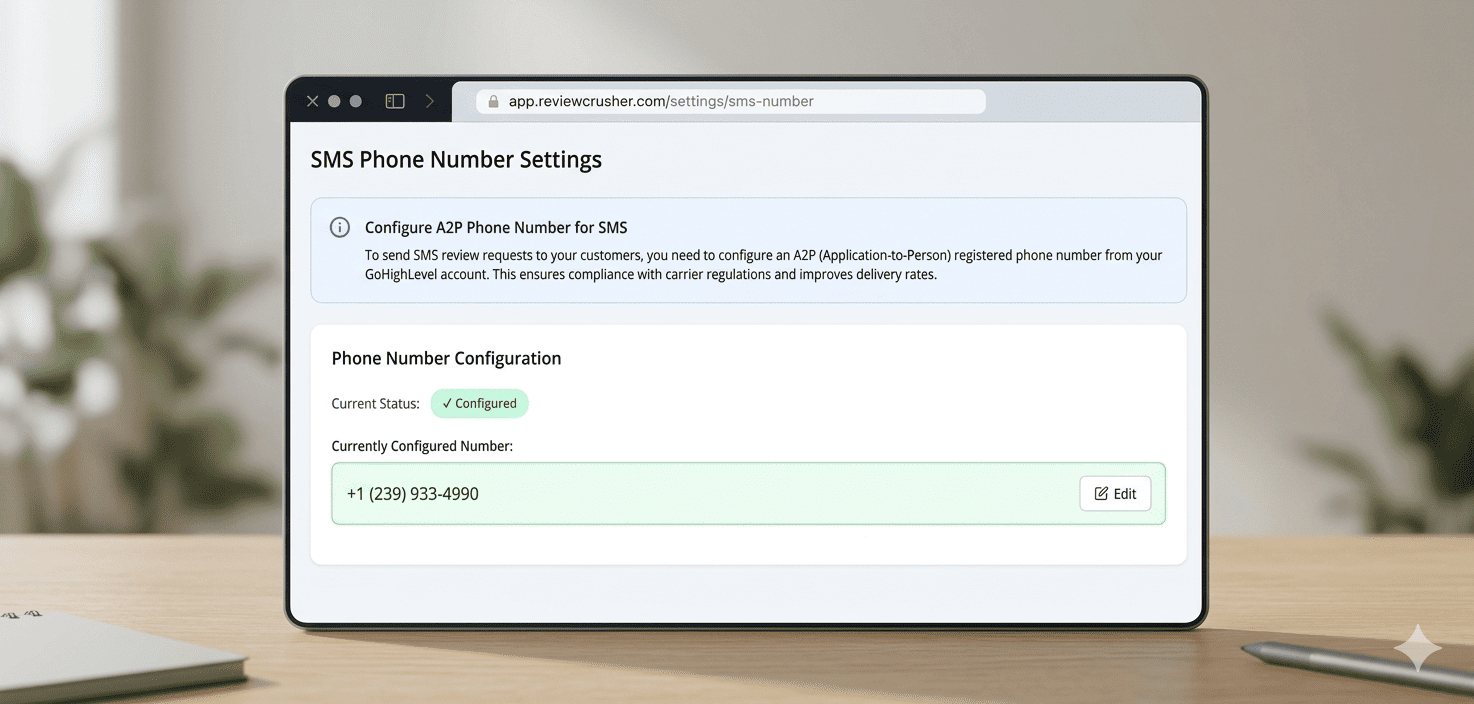
The A2P Number page is where you add or update the phone number used for SMS review requests.
This page is specifically for configuring the number that has already been registered for A2P use.
Important:
A2P registration itself is not completed on this page. Registration can only be done through the onboarding or kickoff call.
Open the left sidebar and go to:
A2P Number
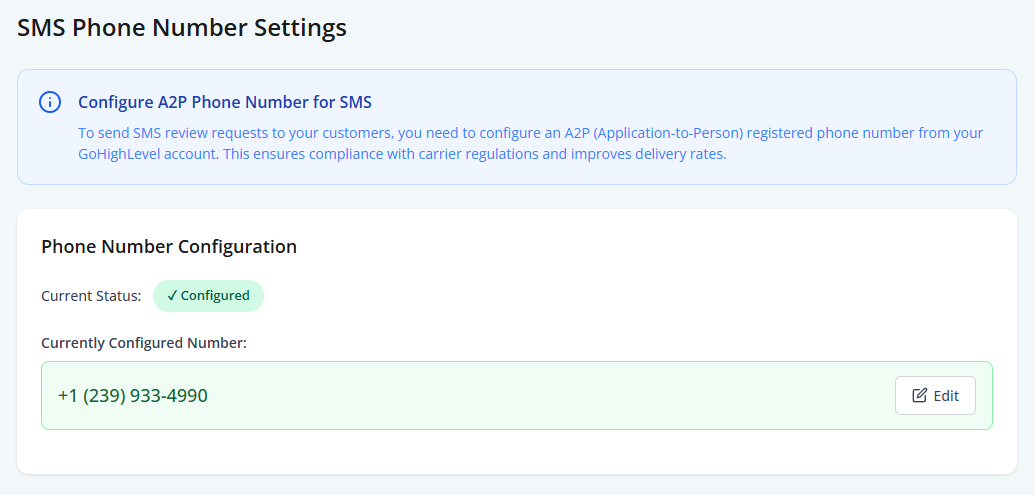
From this screen, you can:
This page is for configuration, not initial registration.
The page refers to an A2P (Application-to-Person) registered phone number.
From the banner shown in the screenshots, this number is required to send SMS review requests to customers.
The banner also explains that using an A2P registered number helps with:
The main page title shown in the screenshots is:
SMS Phone Number Settings
At the top of the page, there is an information banner titled:
Configure A2P Phone Number for SMS
The text in the banner explains that to send SMS review requests, you need to configure an A2P registered phone number from your GoHighLevel account.
Below the banner is the main configuration card titled:
Phone Number Configuration
This section shows the current status of your A2P phone number setup.
The screenshots show 2 possible states:

In the first screenshot, the page shows:
Current Status: Not Configured
When this happens, the page displays:
The field includes placeholder/example formatting like:
+1234567890
Below the field, the helper text says:
Enter your A2P registered phone number from GHL. Format: +1XXXXXXXXXX
Use this format when entering the number.
If your A2P number has already been registered during onboarding or kickoff, enter it here and click Save.

In the configured state, the page shows:
Current Status: Configured
It also displays:
Currently Configured Number:
followed by the saved phone number inside a highlighted box.
In the screenshot, there is also an:
Edit
button.
This means the number is already configured and active in the system.
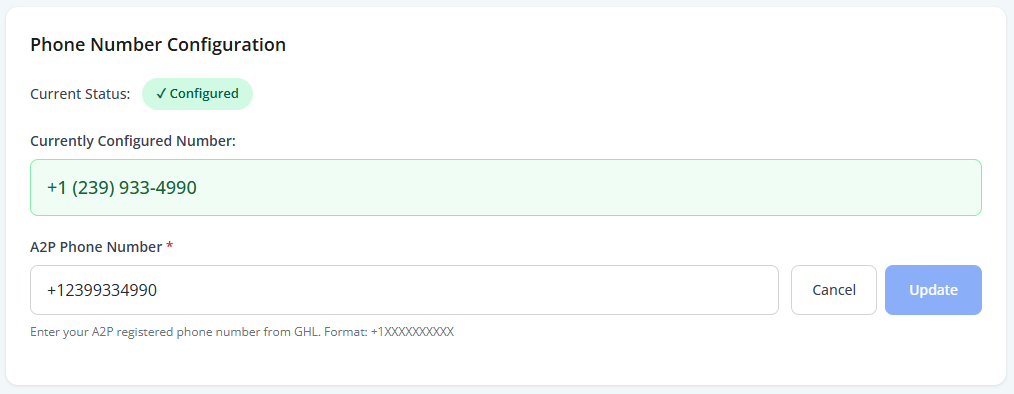
If a number is already configured, click:
Edit
This opens the editing state.
From the screenshot, the editing state shows:
This allows you to replace the current configured number with a new one.
When editing the number:
If you do not want to keep the change, click:
Cancel
This page can make it look like the number setup happens here, but based on your note, the workflow should be understood like this:
The A2P number must first be registered through the onboarding / kickoff call.
This registration step is not completed from this page.
Once the number has already been registered, this page is where you:
So this screen is for managing the configured number after onboarding has already handled the registration process.
A practical workflow based on the screenshots is:
The helper text on the page shows this required format:
+1XXXXXXXXXX
This means the number should be entered with:
Follow the format exactly to reduce the chance of setup errors.
+1XXXXXXXXXX formatThat means no A2P number has been saved yet on this page. If your number was already registered during onboarding, enter it and click Save.
Registration is not done on this page. Based on your process, A2P registration can only be completed during the onboarding / kickoff call.
Click Edit, update the number, then click Update.
Click Cancel to exit without changing the configured number.
Use the format shown on the page:
+1XXXXXXXXXX
The A2P Number section is for storing and maintaining the SMS number used for review requests.
Based on the screenshots and your note, it is not a place to register the number from scratch. It is the place to configure or update a number that has already been registered through onboarding.