
Learn how to connect review platforms, choose an industry and platform, add a review profile link, understand which platforms require authentication, and manage existing platform connections.
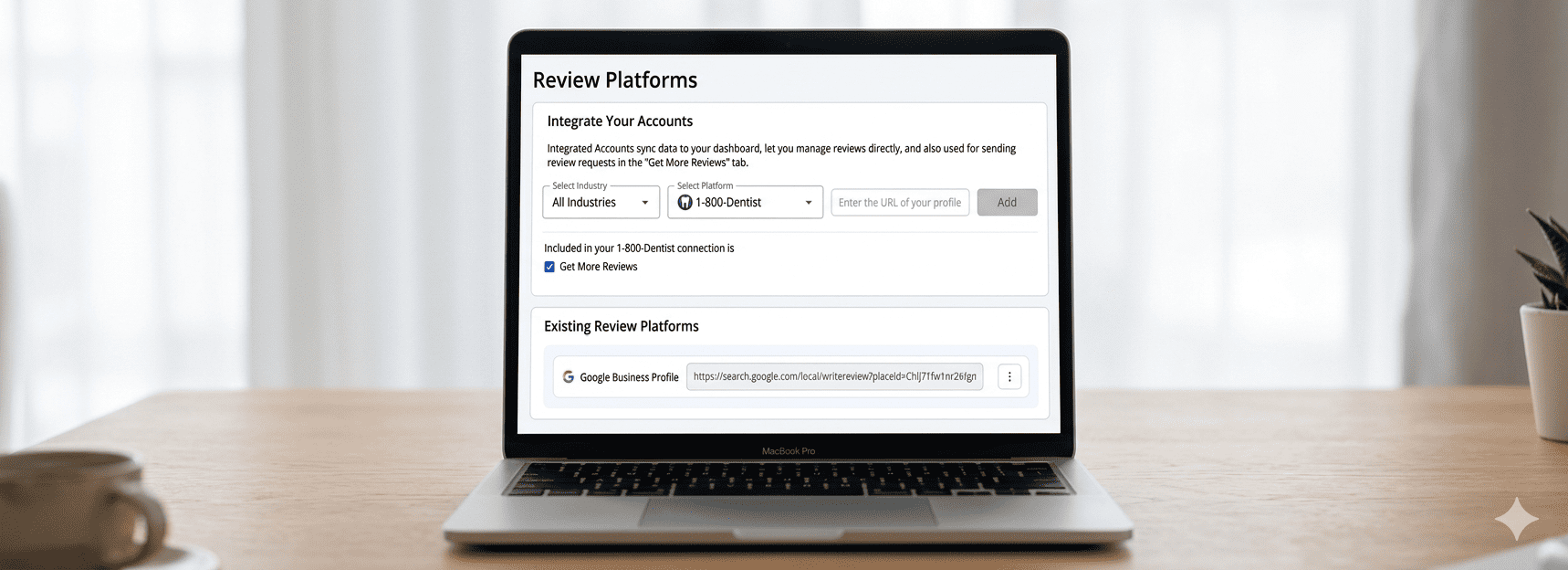
The Review Platforms page is where you connect the review sites you want to use inside ReviewCrusher.
These connected platforms are important because they:
From the screenshots, this page supports selecting an industry, choosing a review platform, and adding a profile link.
Open the left sidebar and go to:
Review Platforms

From this screen, you can:
The page has 2 main sections:
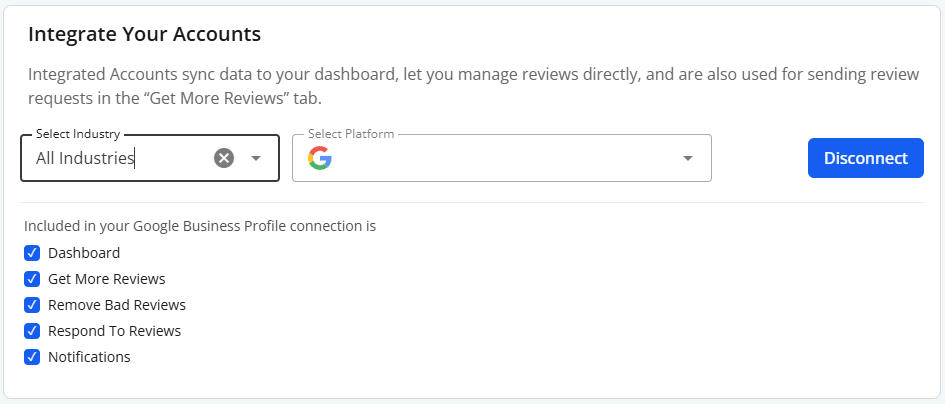
The first section is titled:
Integrate Your Accounts
The page explains that integrated accounts sync data to your dashboard, help you manage reviews directly, and are also used for sending review requests in the Get More Reviews tab.
This is the section where you add a new platform connection.
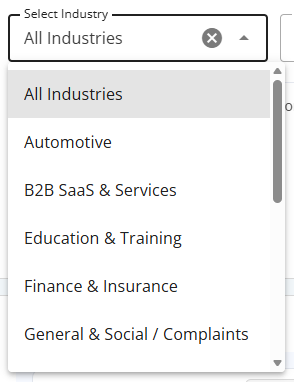
Use the Select Industry dropdown to choose the type of business category that best fits your business.
The screenshots show examples such as:
Choose the industry that best matches your business before selecting the platform.
This helps organize the platform selection process.
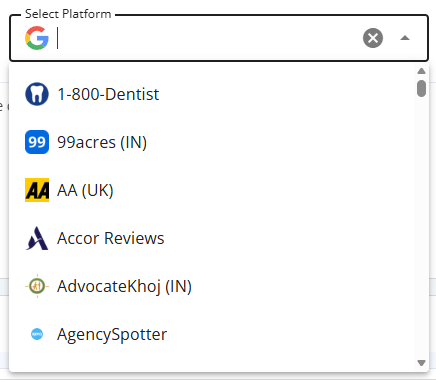
Use the Select Platform dropdown to choose the review platform you want to connect.
The screenshots show examples such as:
The platform field appears to support searching or selecting from a large list.
Choose the platform that matches the review site where your customers leave reviews.
After selecting the platform, use the URL field to enter your review profile link.
The field placeholder shown in the screenshot is:
Enter the URL of your profile
Then click:
Add
to create the connection.
Based on your note and the current behavior:
At this time, Google Business Profile is the only platform that requires authentication to log in and retrieve the review link automatically.
This means the system can connect the Google review profile through authentication rather than relying only on manual URL entry.

For all other platforms, the user must:
So unless the platform is Google Business Profile, the connection process is manual.
Under the platform selection area, the screenshots show a checkbox section with text like:
Included in your 1-800-Dentist connection is
This means the connected platform can be included for use inside the Get More Reviews feature.
If the checkbox is enabled, that platform connection will be available for review request workflows.

The second section is titled:
Existing Review Platforms
This section shows the review platforms you have already connected.
In the screenshot, the example shown is:
This lets you view and manage your current platform connections.
From the screenshots, each existing platform row can show:
This gives you a quick way to confirm that the correct platform and review link are already connected.

Each connected platform row includes a three-dot menu on the right.
When opened, the screenshot shows this option:
Use Disconnect if you want to remove the existing platform connection.
This is useful if:
Be careful before disconnecting a platform that is actively being used in review workflows.
A practical workflow based on the screenshots is:
To manage an already connected platform:
At this time, only Google Business Profile / Google My Business supports authentication-based automatic review link retrieval.
For other platforms, copy and paste the review link manually into the URL field.
That is expected. For non-Google platforms, enter the profile URL yourself and click Add.
Find it under Existing Review Platforms, open the three-dot menu, and choose Disconnect. Then add the correct one.
Use the Select Platform dropdown and scroll or search through the available platform list.
Make sure Get More Reviews is included in the connection.
The Review Platforms section is for setting up the destinations that ReviewCrusher uses for:
This is where you define which review platform profiles are connected to your account.