
Learn how to create a reviews widget, choose a widget layout, customize the title and theme, configure summary options, preview it on desktop or mobile, and copy the embed code for your website.
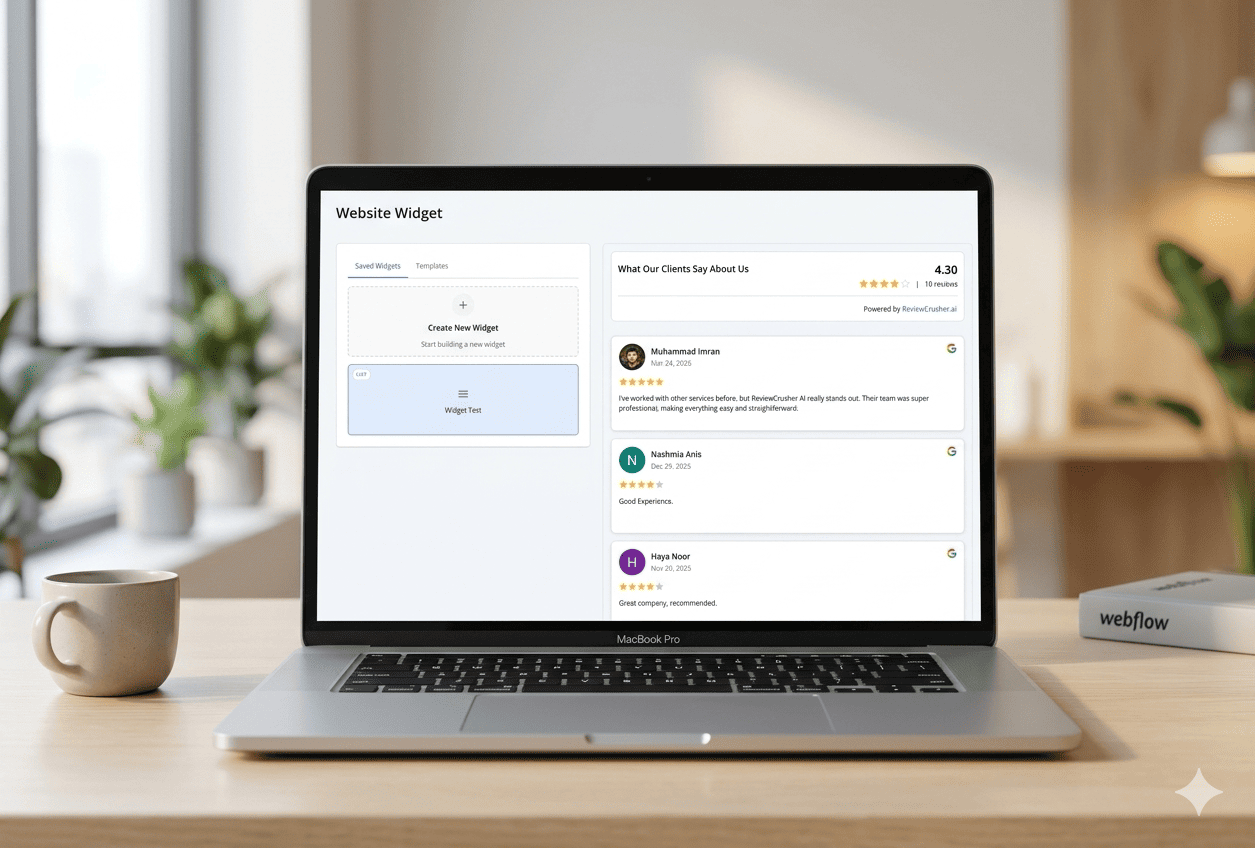
The Reviews Widget feature lets you build a review display widget for your website using your connected reviews.

From the screenshots, this feature supports:
Open the left sidebar and go to:
Reviews Widget
From this area, you can:

The page title shown in the screenshots is:
Website Widget
The main layout is split into 2 panels:
On the left panel, the screenshots show 2 tabs:
Under Saved Widgets, the page shows:
When nothing is selected, the preview panel shows:
Select a widget to see preview
To start from scratch, click:
Create New Widget
This begins the widget builder flow.
If you already have a saved widget, click it from the Saved Widgets list.
In the screenshot, selecting Widget Test loads the preview on the right.
This lets you continue editing or reviewing an existing widget.
The right panel shows a live preview of the widget as you configure it.
From the screenshots, the preview includes:
This helps you review the widget before saving or embedding it on your website.
At the bottom of the preview panel, the screenshots show:
Preview Device
with 2 display buttons:
Use these to switch the preview between smaller and larger screen views.
When editing a widget, the left panel shows 4 tabs:
Each tab controls a different part of the widget.
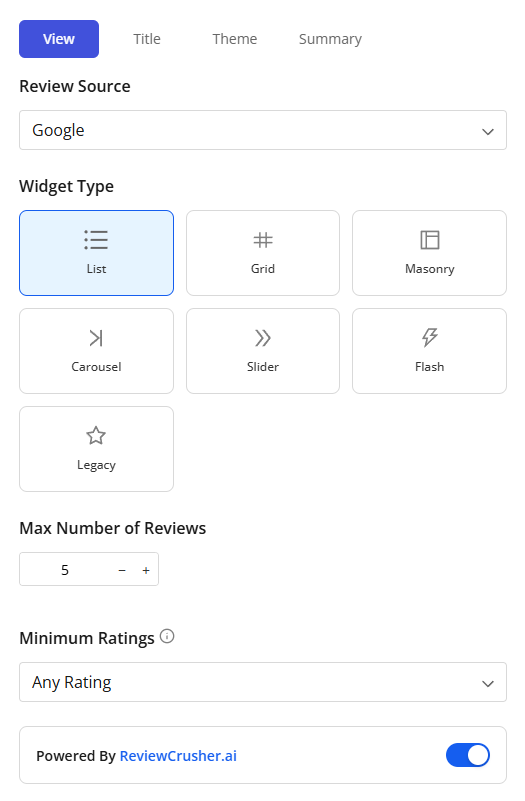
The View tab controls the review source, widget layout, review limits, and visible review feed setup.
From the screenshots, this tab includes the following controls.
The first field shown is:
Review Source
In the screenshot, the selected source is:
Use this dropdown to choose the review source for the widget.
The Widget Type section lets you choose the widget layout.
The screenshots show these visible options:
In the screenshot, Grid is selected.
Choose the layout that best fits your website design.
The Max Number of Reviews control lets you adjust how many reviews appear in the widget.
In the screenshot, the value shown is:
5
with minus and plus controls.
Use this to limit how many reviews are shown at once.
The Minimum Ratings dropdown controls which ratings are included.
In the screenshot, the selected value is:
Any Rating
Use this to control the minimum review score shown in the widget.
The screenshots show a toggle labeled:
Powered By ReviewCrusher.ai
When enabled, the widget displays ReviewCrusher branding in the preview.
If you do not want to change this, leave the toggle in its current state.
The Add Review button appears in the View tab.
Based on the screenshots, this is a visible action available while building the widget.
Use it when you want to add a review into the widget workflow.
The Sync Reviews button also appears in the View tab.
Based on the screenshots, this is a visible action available while editing the widget.
Use it when you want to refresh the widget’s review content from the source.
At the bottom of the View tab, the screenshots show a scrollable review list inside the editor.
Each item appears to include:
This helps you review the content feeding the widget while you configure it.
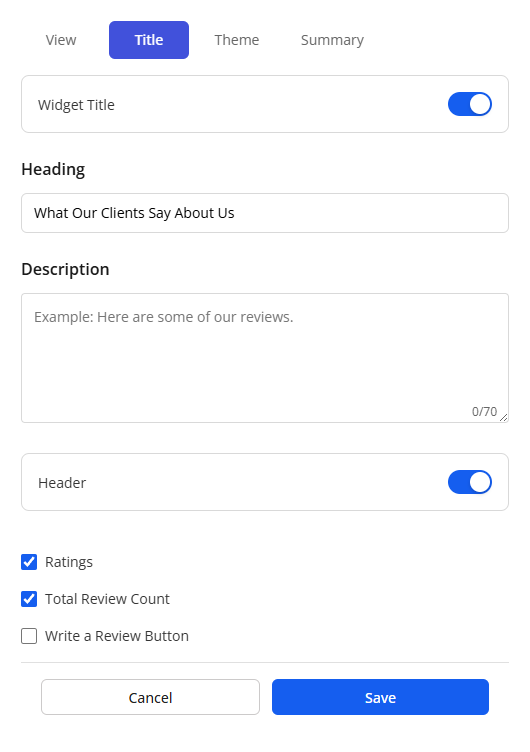
The Title tab controls the visible heading and top summary details of the widget.
From the screenshots, this tab includes the following settings.
The tab shows a Widget Title toggle.
This appears to control whether the widget title section is shown.
The Heading field sets the main title displayed at the top of the widget.
The screenshot example is:
What Our Clients Say About Us
Use a heading that matches the tone of your website.
The Description field lets you add a short supporting line below the heading.
The placeholder shown is:
Example: Here are some of our reviews.
This field appears optional and can be used to add context.
The Header toggle appears below the description field.
This appears to control whether the widget header area is displayed.
The Ratings checkbox controls whether the rating summary is displayed.
In the screenshot, this checkbox is enabled.
The Total Review Count checkbox controls whether the widget shows the number of reviews.
In the screenshot, this checkbox is enabled.
The Write a Review Button checkbox appears in this tab.
In the screenshot, it is not checked.
This suggests the widget can optionally include a review action button.
At the bottom of the tab, the screenshots show:
Click Save to keep your title settings.
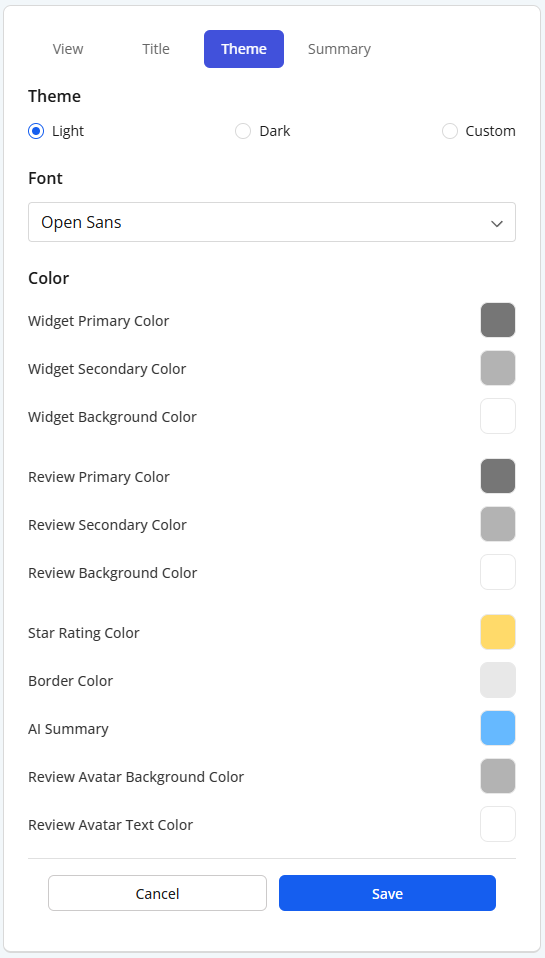
The Theme tab controls the visual styling of the widget.
From the screenshots, this tab includes theme selection, font settings, and detailed color controls.
The screenshots show 3 theme choices:
In the screenshot, Light is selected.
Choose:
The Font dropdown controls the widget font.
In the screenshot, the font shown is:
Open Sans
Use this setting to match the widget to your website typography.
The Theme tab shows multiple color settings.
Visible labels in the screenshot include:
These controls let you fine-tune the appearance of both the widget shell and the individual review cards.
Use the color selectors to match your brand colors.
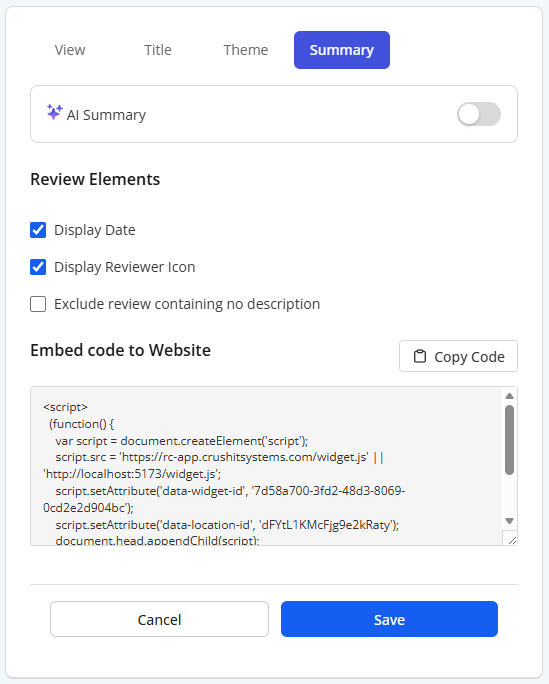
The Summary tab controls AI summary behavior, review display elements, and website embed code.
At the top of the Summary tab, the screenshots show an:
AI Summary
toggle.
This indicates the widget can include an AI summary feature.
Use this toggle if you want the widget to include AI summary behavior.

Below the AI Summary toggle, the screenshots show a Review Elements section with checkboxes.
Visible options are:
In the screenshot:
Use these options to control which review details appear in the widget.
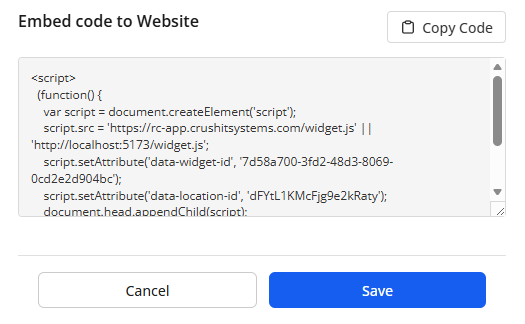
The Summary tab includes a section labeled:
Embed code to Website
This section contains:
The text box in the screenshot says:
Embed code will appear here after saving the widget...
This means the widget must be saved before the embed code becomes available.
Use Copy Code after saving the widget to copy the embed code for use on your website.
If the widget has not been saved yet, the embed code area may still be empty.
A practical workflow based on the screenshots is:
While editing, review the right-side preview panel to confirm:
Use the Preview Device controls to test both views.
Save the widget first. The screenshot indicates the embed code appears after saving.
Lower the Max Number of Reviews or try a different Widget Type.
Use the Theme tab to select font and update the color settings.
Change the Minimum Ratings setting.
Use the Preview Device controls at the bottom of the preview panel.
The Reviews Widget feature is for displaying your reviews on your website using a configurable widget.
Based on the screenshots, it helps you: