
Learn how to update your business profile, address, business details, authorized representative information, general settings, deduplication preferences, and email compliance options from the Business Profile settings page.
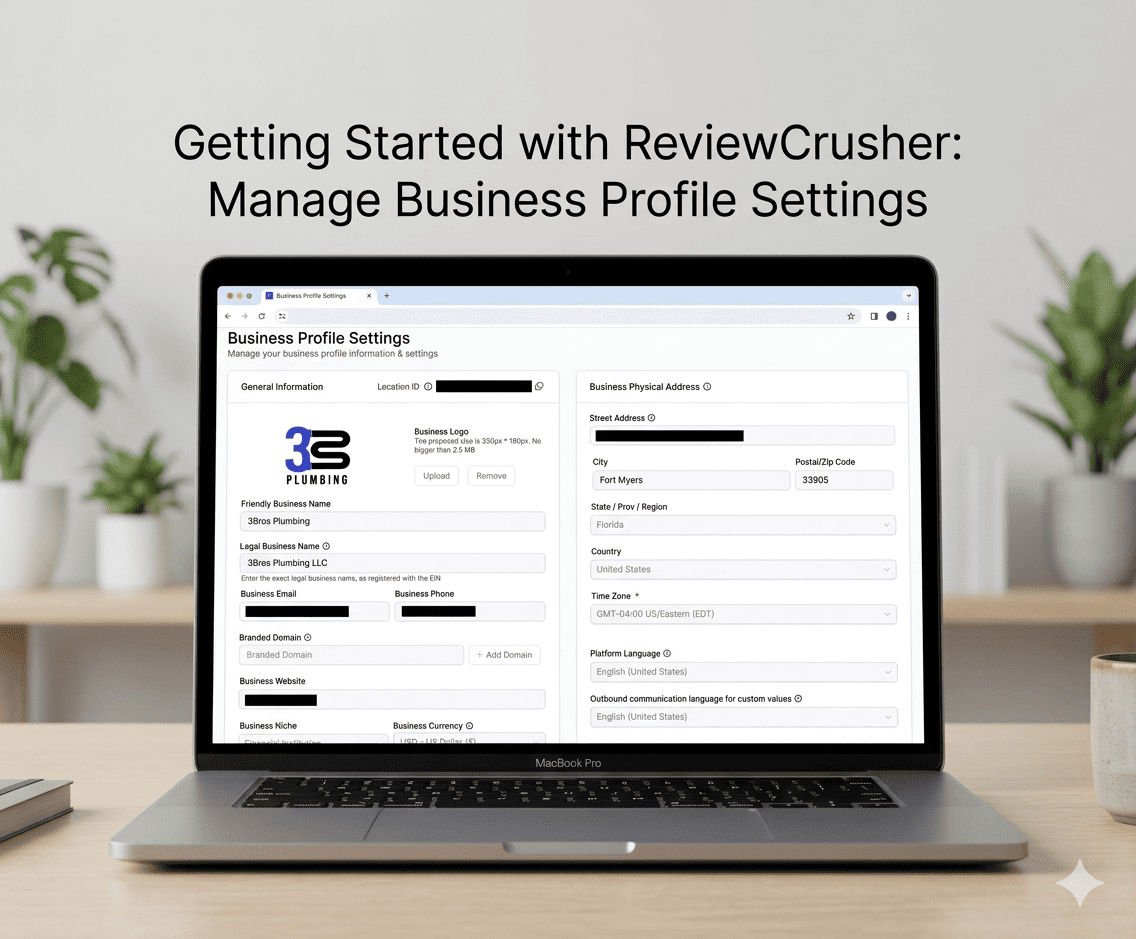
The Business Profile Settings page is where you manage your business information and account-level profile settings.
Based on the screenshots, this page includes several settings sections, including:
It also includes links that point to other settings pages for related features.
Open the left sidebar and go to:
Settings → Business Profile

From this screen, you can:
The page title shown in the screenshot is:
Business Profile Settings
Below it is a short description:
Manage your business profile information & settings
At the top-left area of the page, the sidebar also shows:
This indicates the Business Profile screen is part of a larger settings area.
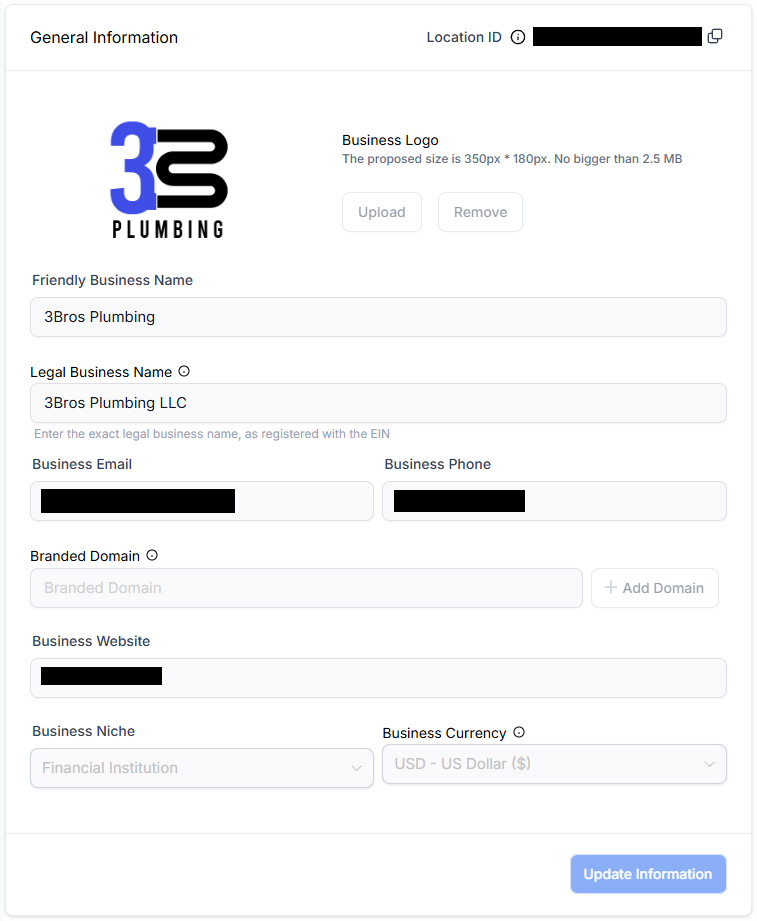
The General Information section contains the main business identity fields.
This section also shows a visible Location ID at the top.
The screenshot includes a copy icon next to the Location ID, which suggests it can be copied.
The top of the General Information card shows:
Location ID
followed by the account’s location identifier.
Use this if you need to reference the location in integrations or internal setup work.
The section includes a Business Logo upload area.
The screenshot shows these notes:
Visible actions include:
Use this section to add or replace the business logo shown across the account.
The Friendly Business Name field is the display name used for the business.
In the screenshot, it is filled with the brand name.
Use this for the customer-facing or common business name.
The Legal Business Name field is used for the formal registered business name.
The screenshot also shows helper text that indicates this should match the legal business name registered with the EIN.
Use this field for the official legal entity name.
The Business Email field stores the main business email address.
Use this for business communication and account-related contact purposes.
The Business Phone field stores the main business phone number.
Use the correct format for the phone number used by the business.
The Branded Domain section appears with an input field and an:
+ Add Domain
button.
This indicates the page supports adding a branded domain, although the screenshot does not show a completed domain entry.
Use this section if your account uses a branded sending or hosted domain.
The Business Website field stores the main website URL for the business.
Use the full website address.
The Business Niche field appears as a dropdown.
Use this to categorize the business by niche.
The Business Currency field appears as a dropdown.
Use this to select the business’s operating currency.
At the bottom of the General Information card, the screenshot shows:
Update Information
Click this to save changes made in that section.
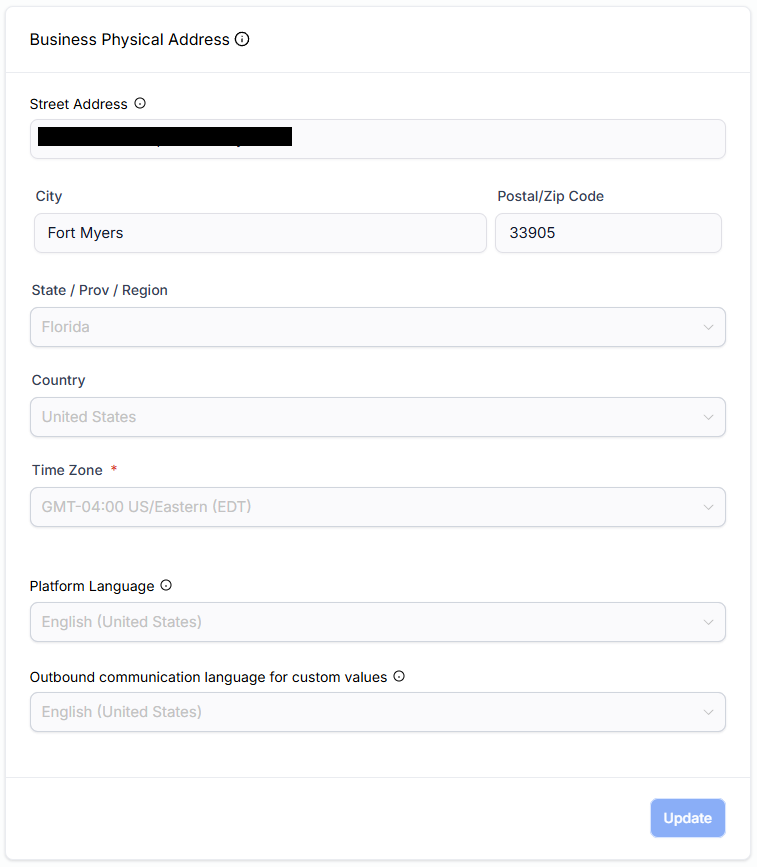
The Business Physical Address section stores the business location details.
This section includes these fields:
Use Street Address to store the main physical address of the business.
Use City for the city where the business is located.
Use Postal/Zip Code for the location’s zip or postal code.
Use State / Prov / Region for the state or equivalent region.
This appears as a dropdown field in the screenshot.
Use Country to store the business’s country.
This also appears as a dropdown.
The Time Zone field is marked as required in the screenshot.
Use this to set the operating time zone for the business account.
Use Platform Language to choose the account language setting.
This field appears as a dropdown.
Use it if your account needs a specific language setting for outbound communication custom values.
At the bottom of the Business Physical Address card, the screenshot shows:
Update
Use this to save changes made in that section.

Farther down the page, the screenshots show a Business Information section.
This section includes:
Use Business Type to classify the business.
This appears as a dropdown in the screenshot.
Use Business Industry to define the industry category.
This also appears as a dropdown.
Use Business Registration ID Type to choose the type of registration identifier used by the business.
Use Business Registration Number to enter the corresponding registration number.
If the business is not formally registered, the screenshot shows a checkbox labeled:
My business is Not registered
The screenshots show these visible region checkboxes:
Use these to indicate where the business operates.
At the bottom of the Business Information card, the page again shows:
Update Information
Use this button to save changes in that section.
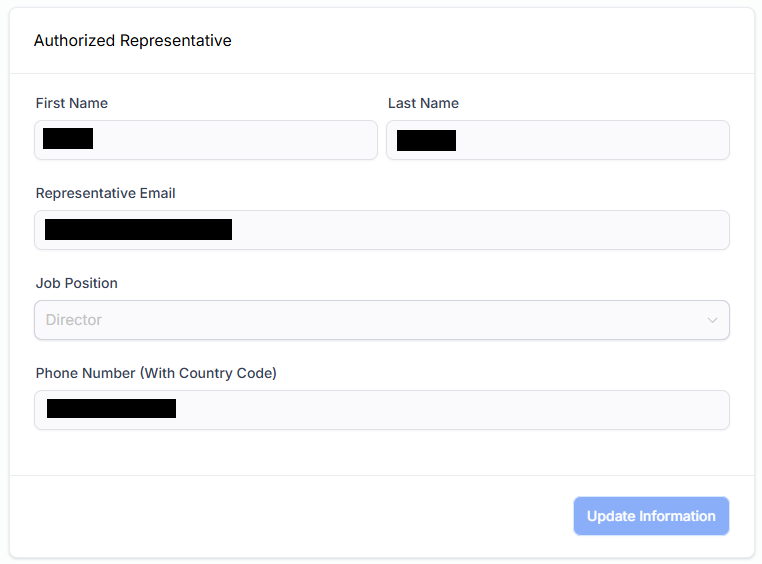
The Authorized Representative section stores the details of the person representing the business.
The screenshots show these fields:
Use these fields to enter the authorized representative’s name.
Use Representative Email to store the representative’s email address.
Use Job Position to select or store the representative’s role.
In the screenshot, this appears as a dropdown and includes a value such as CEO.
Use this field to store the representative’s phone number including country code.
At the bottom of this section, the screenshot shows:
Update Information
Use it to save representative details.
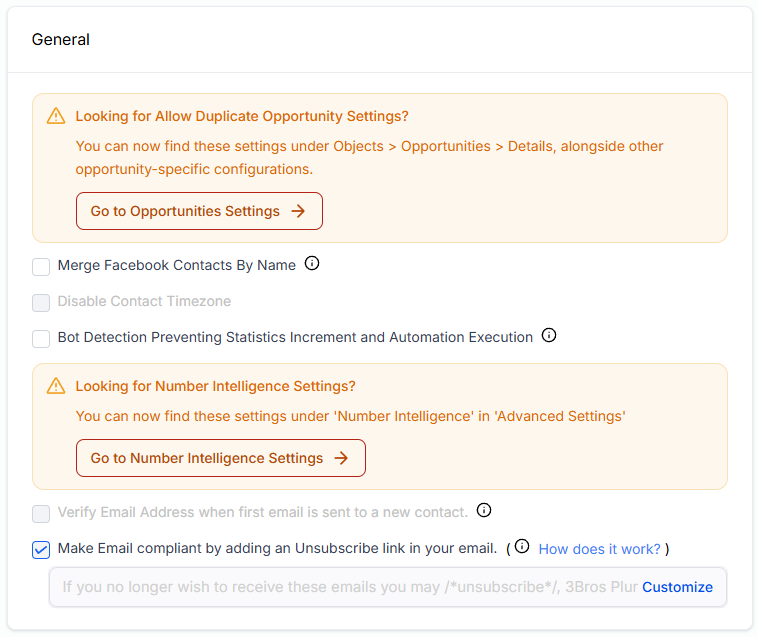
The screenshots also show a General section with settings and linked notices.
Visible items include:
Some of these appear enabled or disabled in the screenshot.
This appears as a checkbox option.
Use it if your workflow needs Facebook contacts merged by name.
This also appears as a checkbox option.
Use it if that timezone behavior should be disabled.
This appears as another checkbox option.
Use it if you need the platform’s bot detection behavior adjusted for statistics and automations.
This option appears in the screenshot as a checkbox.
Use it if you want email verification to occur when the first email is sent to a new contact.
This checkbox is visibly enabled in the screenshot.
The page also shows a Customize option next to the unsubscribe text area.
Use this setting if you want emails to include an unsubscribe link for compliance.
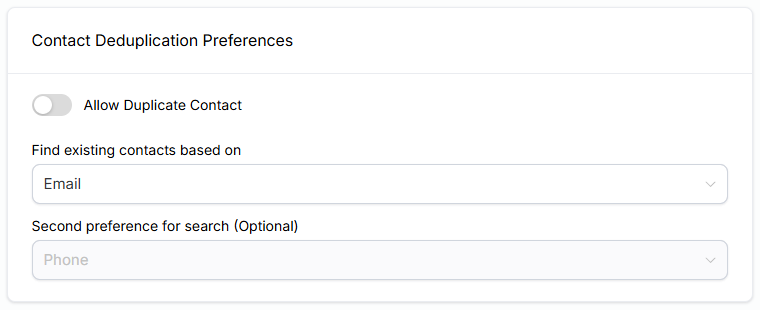
Another visible section is:
Contact Deduplication Preferences
This section controls how the system handles duplicate contacts.
The screenshots show:
This appears as a toggle.
If enabled, duplicate contacts can be allowed.
If disabled, the system will try to prevent duplicates based on the selected matching rules.
The screenshot shows a dropdown with a selected value of:
Use this setting to choose the primary field used to identify existing contacts.
This field appears as another dropdown.
The screenshot shows Phone as a visible option or placeholder.
Use this if you want a secondary matching field in addition to the primary one.
The screenshots show several orange notice boxes that point to other settings areas.
These include:
Each notice includes a button leading to the related settings page.
Examples shown include:
These are informational shortcuts and indicate those settings are managed elsewhere.
A practical workflow based on the screenshots is:
The screenshot shows a notice that these settings are now under another area, with a button to open them.
Use the Go to Opportunities Settings button shown in the notice box.
Use the Go to Number Intelligence Settings button shown in the notice box.
Use the Go To Missed Call Textback Settings button shown in the notice box.
The Business Information section includes a checkbox for:
My business is Not registered
Use that if it applies to your business.
Go to Contact Deduplication Preferences and update the duplicate contact settings and search preferences.
The Business Profile Settings page is the main account profile configuration area for your business.
Based on the screenshots, it is used to maintain: