
Docs
/
Respond to Reviews
/
Reply to Customer Reviews
Respond to Reviews

Reply to Customer Reviews

Learn how to view incoming reviews, filter them by rating or source, reply to reviews, edit existing replies, and use the AI-assisted reply button inside the response editor.
5 mins
Beginner

Reply to Customer Reviews

The Respond to Reviews section lets you review customer feedback and post replies directly from inside ReviewCrusher.

From the screenshots, this page is designed to help you:

  • browse incoming reviews
  • filter reviews by rating or source
  • reply to reviews that do not yet have a response
  • edit replies that have already been posted
  • use the built-in AI button while drafting a response

Where to find it

Open the left sidebar and go to:

Respond to Reviews

What you can do on this page

From this screen, you can:

  • view all review cards in one list
  • filter reviews by:
    • Ratings
    • Sources
  • identify reviews that still need a reply
  • post a new reply
  • edit an existing owner reply
  • use the AI button inside the reply editor
  • save or cancel your reply

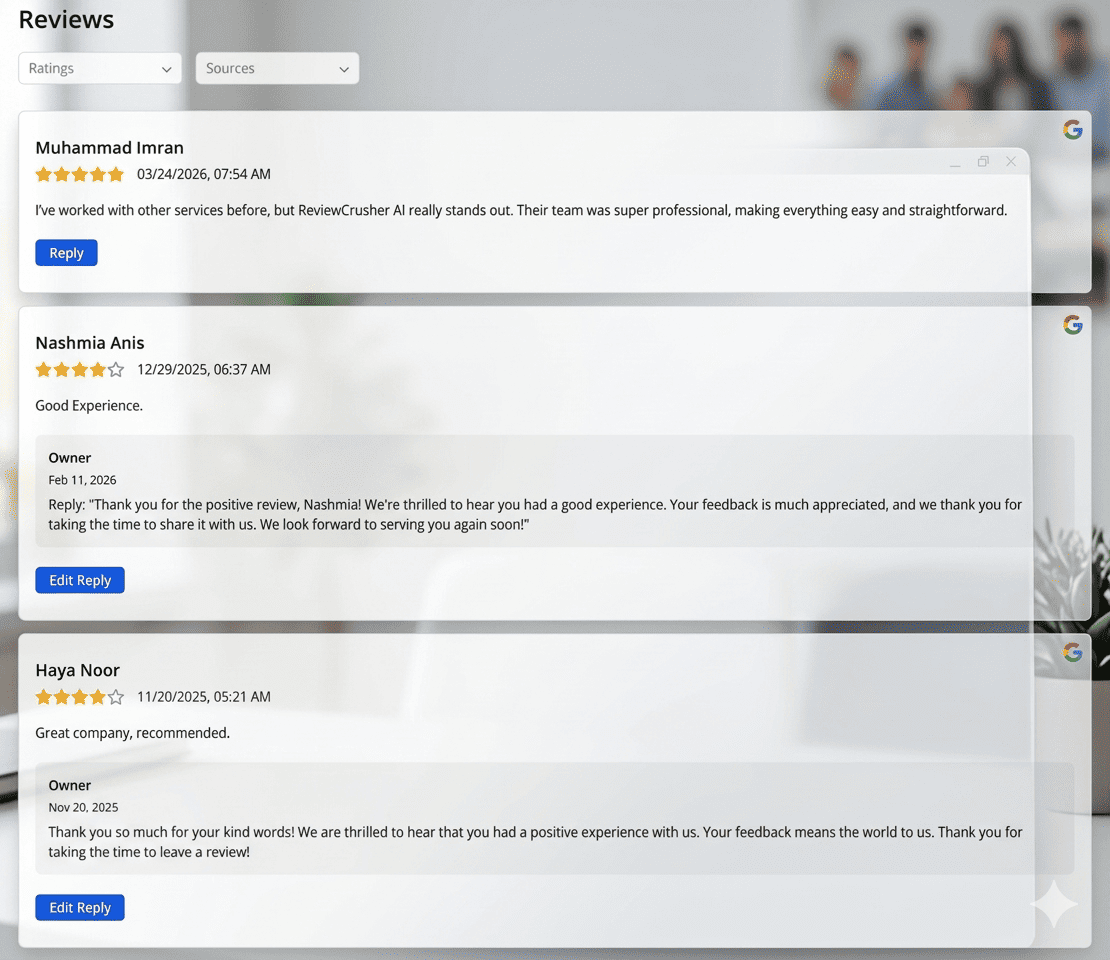
Reviews page layout

The page title shown in the screenshot is:

Reviews

At the top of the page, there are 2 filter dropdowns:

  • Ratings
  • Sources

Below the filters is a scrollable list of review cards.

Each review card can show:

  • reviewer name
  • star rating
  • review date and time
  • review text
  • review source icon
  • reply controls
  • owner reply block, if a reply already exists

In the screenshots, the visible source icon is Google.
Filter reviews

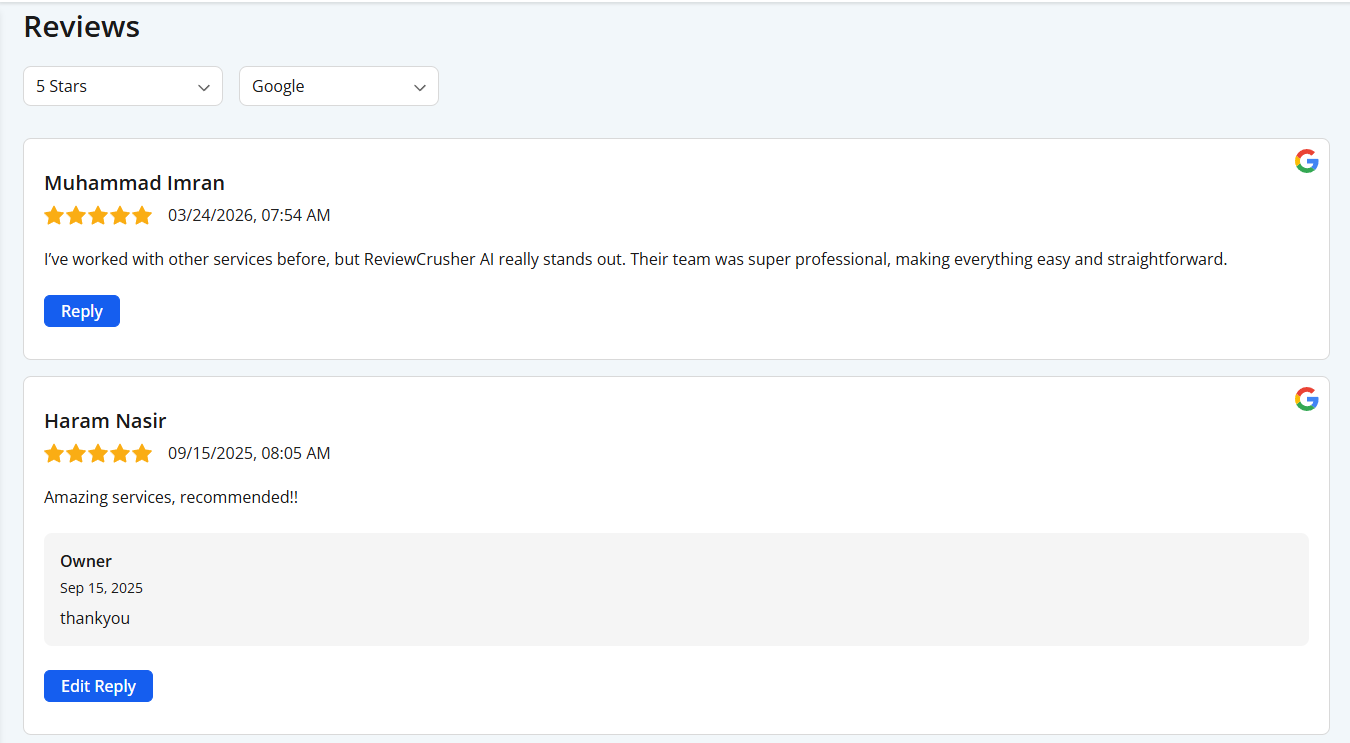
At the top of the page, use the dropdown filters to narrow the review list.

Ratings

Use Ratings to filter reviews by star level.

This is useful when you want to:

  • focus on lower-rated reviews first
  • review only high-rated feedback
  • prioritize reviews that may need urgent attention

Sources

Use Sources to filter reviews by platform.

The screenshots show Google review icons on the cards, so Google is at least one visible source in this view.

These filters help you find the reviews you want to respond to more quickly.

Review cards

Each review appears in its own card.

From the screenshots, a review card can include:

  • reviewer name
  • star rating
  • review date and time
  • review message
  • Google icon
  • a Reply button if no owner reply exists
  • an Owner reply block if a reply already exists
  • an Edit Reply button when a reply is already present

Reviewer details

At the top of each card, the page shows the reviewer’s name.

Below that, the card shows:

  • star icons
  • the review date and time

This helps you understand when the review was posted and how the customer rated the business.

Review text

The main review message appears directly under the reviewer details.

This is the content you will respond to.

Examples in the screenshots include:

  • a positive review with detailed feedback
  • shorter review text like “Good Experience.”
  • a short recommendation-style review

Source icon

Each visible review card in the screenshots includes a Google icon on the right side.

This helps identify the platform where the review came from.
Reply to a review

If a review does not yet have a response, the card shows a:

Reply

button.

Click Reply to open the inline response editor.

In the screenshots, this happens under the review card itself.

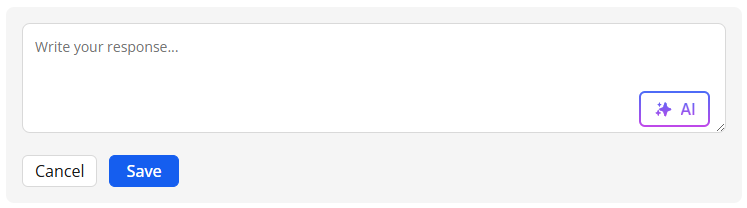
Reply editor

When the reply editor opens, it appears inside the review card.

The editor shown in the screenshot includes:

  • a text box with placeholder text:
    Write your response...
  • an AI button
  • Cancel button
  • Save button

This lets you write and submit a response without leaving the page.

Write your response

Type your reply into the text box.

A good reply usually:

  • thanks the customer
  • acknowledges their feedback
  • stays polite and professional
  • reflects your brand voice

Keep the response clear and natural.

Use the AI button

Inside the reply editor, the screenshot shows an AI button.

Use this when you want help drafting or improving your response.

Based on the screenshot, the AI function is available directly inside the editor while replying.

Save or cancel

After writing your response, choose one of these options:

  • Save to keep and submit the reply
  • Cancel to close the editor without saving

Edit an existing reply

If a review already has a response, the card shows an Owner reply block and an:

Edit Reply

button.

This indicates the review has already been answered and can be updated if needed.

Owner reply block

The screenshots show an Owner section inside replied review cards.

This block includes:

  • the label Owner
  • the date of the reply
  • the reply text

Use this section to review what was already posted.

Edit Reply

Click Edit Reply when you want to update the existing owner response.

This is useful if:

  • you want to improve the wording
  • correct a mistake
  • make the response more personalized
  • update an older reply style

From the screenshots, replied reviews remain visible along with the existing owner response and the edit action.

How to use Respond to Reviews

A practical workflow based on the screenshots is:

  1. open Respond to Reviews
  2. use Ratings or Sources filters if needed
  3. review the list of review cards
  4. look for reviews with:
    • Reply if they still need a response
    • Edit Reply if they already have one
  5. click Reply or Edit Reply
  6. write or revise the response
  7. optionally use the AI button
  8. click Save

Best practices

  • respond to lower-rated reviews quickly
  • keep replies polite and professional
  • thank customers for positive reviews too
  • use Edit Reply if older replies need improvement
  • use the AI button to speed up drafting, but still review the final wording before saving
  • use the filters to work through reviews more efficiently

Troubleshooting

I want to reply to a review that has no response

Click Reply on that review card.

I want to change a reply that already exists

Click Edit Reply on the review card.

I do not see the review I want

Use the Ratings and Sources filters to narrow the list.

I started writing a reply but do not want to keep it

Click Cancel in the reply editor.

I want help writing a response

Use the AI button inside the reply editor.

What this feature is for

The Respond to Reviews section is for managing public responses to customer feedback from one place.

Based on the screenshots, it helps businesses:

  • stay engaged with customer reviews
  • answer new reviews quickly
  • revise older replies
  • maintain a consistent response workflow