
Learn how to review notification activity, mark notifications as read, open notification settings, add team members, choose email or SMS preferences, and control private or public feedback alerts.
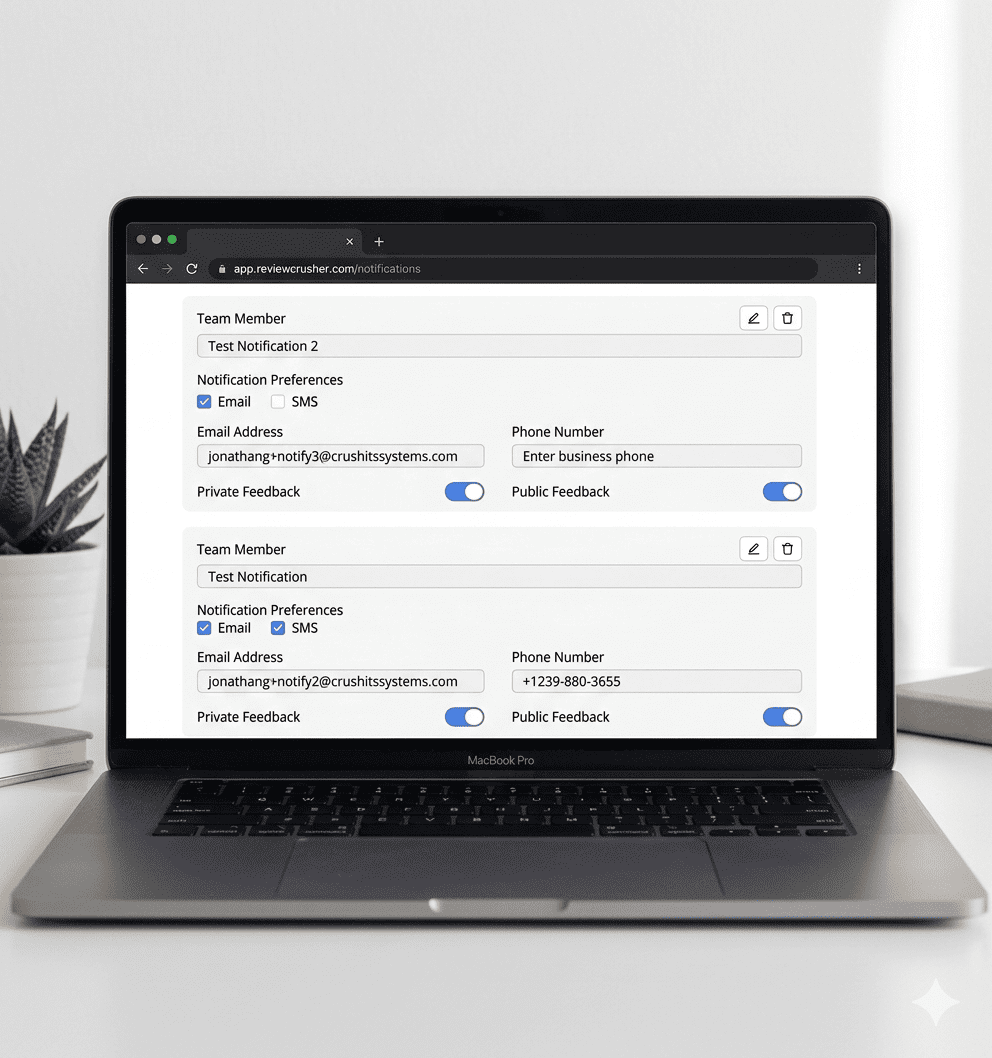

The Notifications section lets you monitor incoming review activity and manage who receives alerts.
From the screenshots, this area supports:
Open the left sidebar and go to:
Notifications
From this area, you can:
The main page title shown in the screenshot is:
Notifications
At the top-right of the page, there is a:
Settings
button.
Below it is a vertical list of notification items.

Each notification item in the screenshot shows:
The repeated title shown in the screenshot is:
New Rating Received
This indicates the page is showing rating-related alerts.
Each notification includes a short activity summary.
From the screenshots, examples include:
This helps you quickly understand what happened without opening another page first.
Each notification entry shows a timestamp below the message text.
This helps you identify when the rating or feedback was received.
On the right side of each notification item, the screenshot shows:
Mark as Read
Use this to mark that specific notification as read.
This helps clean up your notification list and makes it easier to focus on new items.

To manage notification recipients and preferences, click:
Settings
This opens the Notification Settings page.
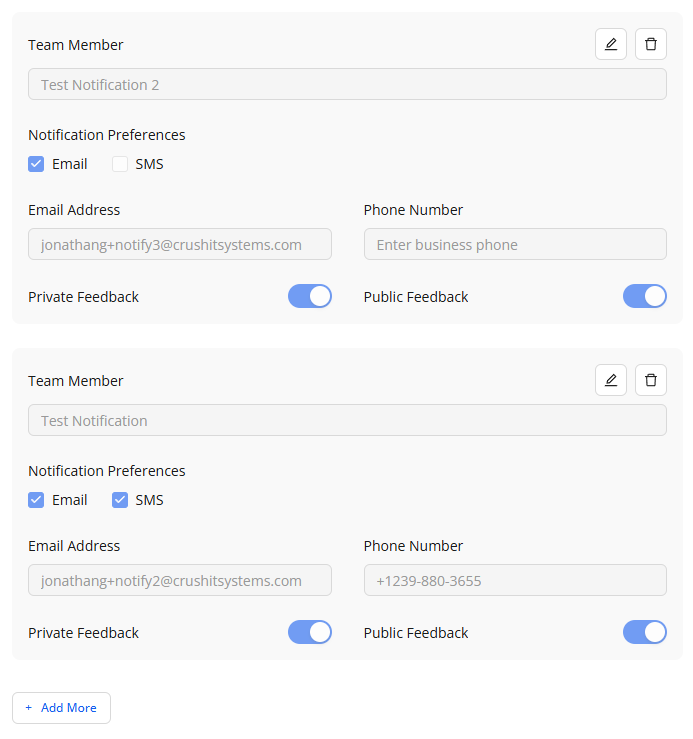
The settings page title shown in the screenshot is:
Notification Settings
At the top-left, there is a back arrow to return to the previous screen.
The page displays one or more team member notification cards.
Each card is used to define how a specific team member should receive alerts.
Each settings card starts with a:
Team Member
field.
The screenshots show example team member names such as:
This appears to identify the notification recipient profile.

At the top-right of each team member card, the screenshots show two action icons:
Use these to modify or remove that notification recipient setup.
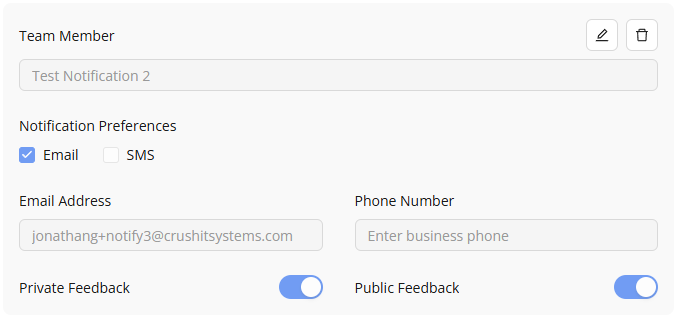
Each team member card includes a section labeled:
Notification Preferences
The screenshots show 2 checkbox options:
You can choose whether the team member receives notifications by email, SMS, or both.
One team member has:
Another team member has:
Each team member card includes an:
Email Address
field.
Use this to enter the email address where notifications should be sent.
The screenshot shows example email addresses using the business domain.
Each team member card also includes a:
Phone Number
field.
Use this to enter the number that should receive SMS notifications.
In one screenshot, the field is empty. In another, it contains a phone number.
If SMS is part of the team member’s notification preference, this field should be filled in.
At the bottom of each team member card, the screenshots show two toggles:
These toggles control which type of feedback notifications that team member receives.
Use this toggle if the team member should receive alerts related to private feedback.
Use this toggle if the team member should receive alerts related to public feedback.
In the screenshots, both toggles appear enabled for the visible team members.
At the bottom of the Notification Settings page, the screenshot shows an:
+ Add More
button.
Use this to add another team member notification card.
This is helpful if multiple people in your business need alerts.
A practical workflow based on the screenshots is:
Open Notification Settings and either:
Check that the Phone Number field is filled in for that team member.
In Notification Preferences, check Email and leave SMS unchecked.
Turn on Private Feedback and turn off Public Feedback for that team member.
Click + Add More on the Notification Settings page.
The Notifications section helps your team stay aware of new ratings and feedback activity.
Based on the screenshots, it supports both: