
Learn how to configure automated gated review requests, enable email and SMS delivery channels, apply the SMS opted-in filter, and understand the SMS, Email, and SMS + Email message sequences.
.png)
The Automated Requests feature lets you send review requests automatically based on your configured triggers.
The page describes this as an Automated Gated Review Requests workflow. It can send review requests after a custom trigger, such as a customer payment or customer visit.

The workflow stops in one of two cases:
Go to:
Get More Reviews → Automated Requests
From this screen, you can:
The page itself states:
Click any step to set its message, review link, and CrushPix image.
At the top of the page, the Delivery Channel Settings section controls which automated review cadence channels are used for the location.
Each delivery option has its own row and toggle.
The Email Review Requests row controls whether automated email review requests are enabled.
The description shown is:
Send review request emails to customers (automated cadence).
If this toggle is enabled, ReviewCrusher can use the email sequence for eligible contacts.
The SMS Review Requests row controls whether automated SMS review requests are enabled.
The description shown is:
Send review request SMS to customers (automated cadence).
In the screenshot, this row also shows an ACTIVE badge.
If this toggle is enabled, ReviewCrusher can use the SMS sequence for eligible contacts.
The SMS Opted-In Filter row controls whether SMS is only sent to contacts with a specific tag.
The description shown is:
Only send SMS to contacts tagged as sms_opted_in in GHL.
In the screenshot, this row also shows a RECOMMENDED badge.
This means SMS sending can be limited to contacts who have already been marked as opted in inside GoHighLevel.
If your account uses SMS review requests, this filter helps keep messaging restricted to properly tagged contacts.
The page may also show an account warning related to SMS performance.
In the screenshot, there is a red alert box that says:
Account Flagged for Review
It also shows:
High SMS opt-out rate: 9.5% (2 stops / 21 sent in last 30 days)
and:
Please contact support to resolve this.
This indicates that ReviewCrusher may flag your account for review if SMS opt-out activity is too high.
If you see this warning, review your SMS settings and contact support if needed.
Below the delivery settings is the Message Sequences section.
This section lets you view the automated message flow for each delivery path.
The page explains that this area is used to configure content for each delivery channel, and that clicking a step lets you set its:
There are 3 sequence tabs:
Each sequence is designed for a different contact scenario.
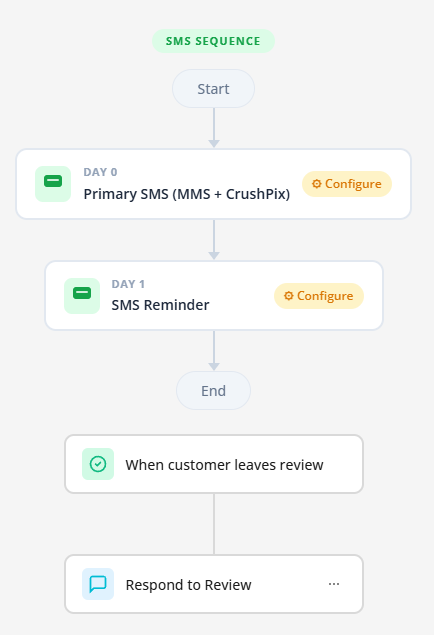
Use the SMS Sequence for contacts who only have a phone number.
The screenshot describes this sequence as:
For contacts with only a phone number. Primary MMS with CrushPix, then a text-only reminder the next day.
A badge on the screen shows:
Max 2 touches
The flow shown in the screenshot is:
Below the sequence, the workflow also shows:
Both visible message steps in the SMS sequence are marked Configured in the screenshot.
This sequence is intended for contacts who do not have an email address available.
The first touch is an SMS message that includes a CrushPix as MMS content.
The second touch is a text-only reminder sent the next day.
Because the screen shows Max 2 touches, this path appears intentionally short.
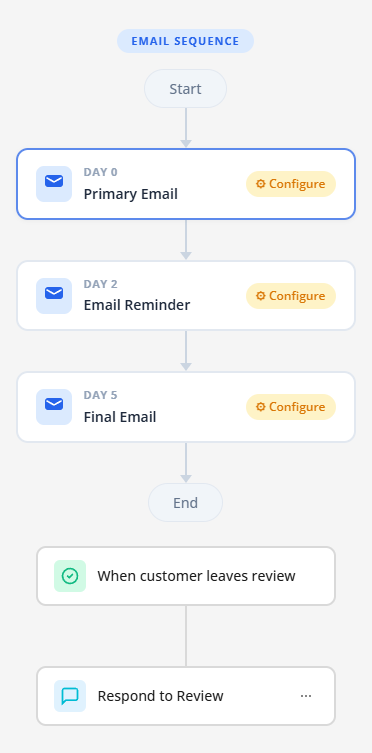
Use the Email Sequence for contacts who only have an email address.
The screenshot describes this sequence as:
For contacts with only an email address. Three politely spaced emails over 5 days.
A badge on the screen shows:
Max 3 touches
The flow shown in the screenshot is:
Below the sequence, the workflow also shows:
All 3 email steps are marked Configured in the screenshot.
This sequence is intended for contacts who only have an email address.
The messages are spaced over 5 days:
This creates a longer follow-up cadence than the SMS-only path.
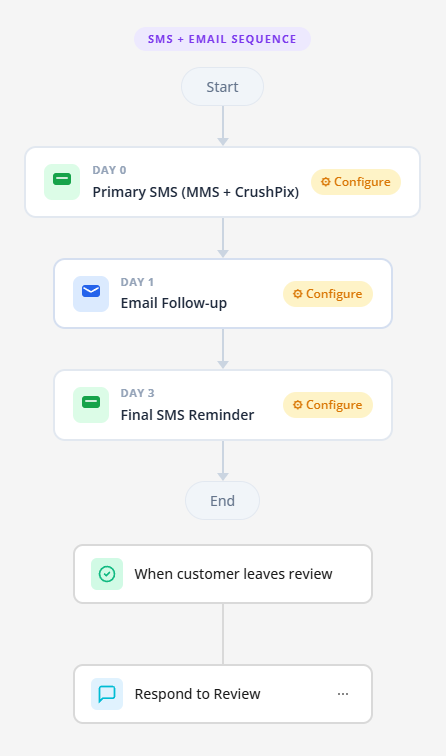
Use the SMS + Email Sequence for contacts who have both a phone number and an email address.
The screenshot describes this sequence as:
For contacts with both phone and email. SMS first, then email next day, final SMS reminder on day 3.
A badge on the screen shows:
Max 3 touches (2 SMS + 1 Email)
The flow shown in the screenshot is:
Below the sequence, the workflow also shows:
All 3 steps in this sequence are marked Configured in the screenshot.
This sequence is intended for contacts who have both contact methods available.
The order shown is:
This creates a mixed-channel follow-up path using both SMS and email.
Across all 3 message sequence views, the workflow shows an end condition tied to review completion.
After the visible message steps, the flow includes:
Based on the screen, this indicates the automated review request path is connected to a review completion event and then flows into a response-related action.
The page also states that the workflow stops either when:
A practical setup flow based on the screen is:

If the page shows Account Flagged for Review, review your SMS sending practices and contact support as instructed on the page.
Turn on SMS Opted-In Filter so SMS is only sent to contacts tagged as sms_opted_in in GHL.
The page states that you can click any step in the message sequence to set its:
Use the sequence that matches the contact data available:
Best for contacts with only a phone number.
Best for contacts with only an email address.
Best for contacts who have both a phone number and an email address.