
Learn how to create a Review Link that asks customers to rate you privately first, routes lower ratings to private feedback, and sends higher ratings to your selected public review platforms.
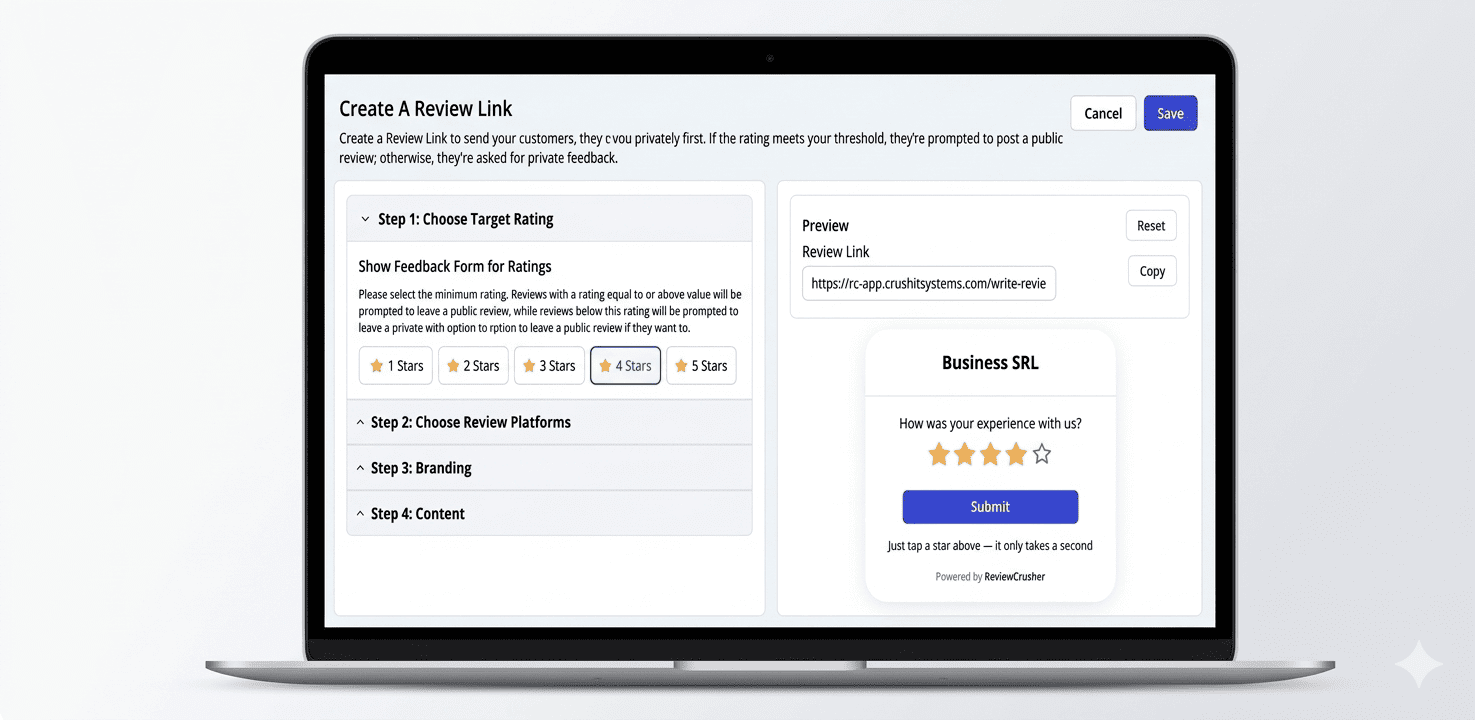

A Review Link lets you collect customer ratings through a branded feedback page. Customers rate their experience first, then ReviewCrusher can guide them to leave a public review if their rating meets your selected threshold.
If the rating is below your threshold, the customer is directed to leave private feedback instead.
Go to:
Get More Reviews → Review Links
Open the Create A Review Link screen to configure your review flow.
The setup is divided into 4 steps:
A live Preview panel appears on the right so you can see how your review page will look before saving.
In Step 1: Choose Target Rating, select the minimum star rating that should be treated as a positive review.
You can choose:
The screen explains that:
For many businesses, 4 Stars is a practical starting point.
If you choose 4 Stars:
Suggested screenshot: Step 1 expanded with the star threshold buttons and preview panel.
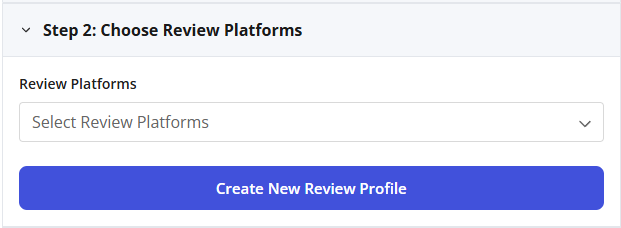
In Step 2: Choose Review Platforms, select where you want happy customers to leave their public review.
Use the Review Platforms dropdown to choose one or more review destinations.
If the platform you need is not already available, click:
Create New Review Profile
This opens a modal where you can create a new review destination.
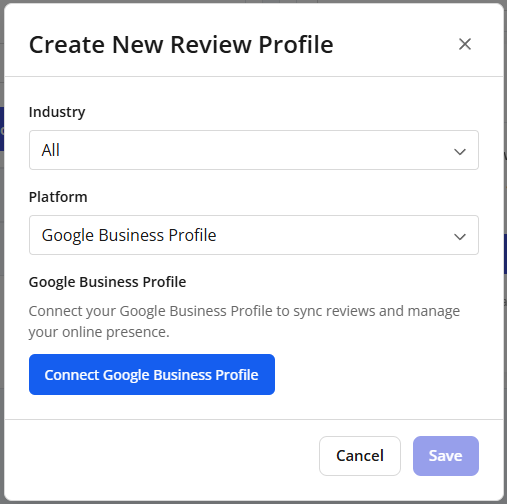
When the modal opens, complete these fields:
Industry
Choose the appropriate industry grouping.
Platform
Select the review platform you want to use.
Link
Paste the direct review link for that platform.
Then click Save.
Suggested screenshots:
In Step 3: Branding, add the business details that will appear on your feedback page.
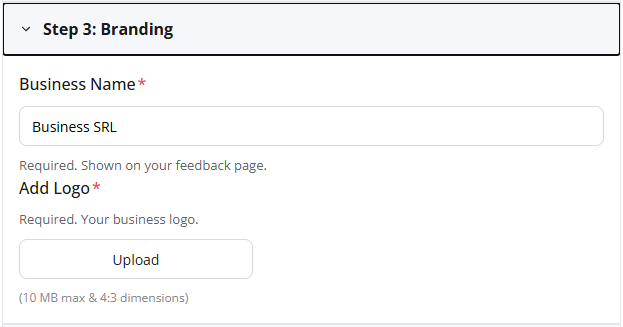
Enter your business name in the Business Name field.
This field is marked required and is shown on your feedback page.
Upload your business logo in the Add Logo field.
This field is also required.
The screen notes:
Using your real business name and logo helps customers recognize your brand and trust the page.
Suggested screenshot: Step 3 expanded showing Business Name and Add Logo.
In Step 4: Content, customize the text and contact details used on the feedback page.
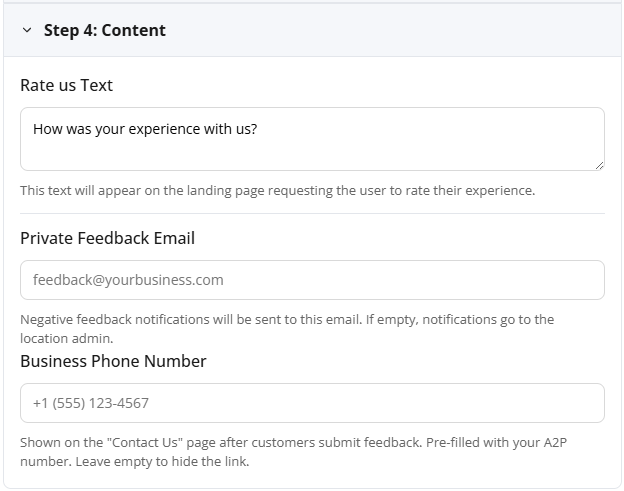
This is the question shown on the rating page.
Example shown in the UI:
How was your experience with us?
Use short, natural wording so customers know what to do right away.
Enter the email address where private feedback notifications should be sent.
If this field is left empty, the screen indicates that notifications will go to the location admin.
Enter the business phone number you want shown on the Contact Us page after a customer submits feedback.
The UI notes that this field may be:
Suggested screenshot: Step 4 expanded showing Rate us Text, Private Feedback Email, and Business Phone Number.
The Preview panel on the right shows how your review page will appear to customers.
The preview includes:
Use the Reset button in the preview area if you want to reset the preview state while reviewing the setup.
When you are finished:
If Save is unavailable, check that all required fields have been completed, especially in the Branding section.
Make sure required fields are completed, especially:
Also confirm your review platform selection is properly set.
Click Create New Review Profile and add it manually.
Check the Private Feedback Email field. If it is empty, feedback notifications go to the location admin.
Leave the Business Phone Number field empty.
Customers land on a branded rating page and choose a star rating.
Based on the threshold you selected:
This helps you capture feedback before it becomes a missed public review opportunity.