
Learn how to create a CrushPix from a custom image or template, upload a background and logo, personalize the greeting and message, preview the design for email and SMS, and save it for use in review requests.
.png)
CrushPix lets you create branded images that can be used in your review requests.


From the screenshots, CrushPix supports two starting points:
You can upload your own business image, add a logo, personalize the greeting and message, and preview how the design appears in different channels.
Go to:
Get More Reviews → CrushPix
From this page, you can:
At the top of the CrushPix panel, you can choose one of two options:
These determine how you build the CrushPix.

Use Custom Image if you want to upload and design your own business image.
The screenshots show a Business Images section where saved images appear in a list with radio buttons and titles.
Examples shown include image titles like:
To start a new one, click:
Create New
On the right side, the preview area initially shows a message telling you to select a business image to preview or create a new one.
When you select an existing image or click Create New, the editing screen opens.
The left panel shows the editable fields.
The right panel shows the preview.
There is also a Save button in the upper-right area of the page.
The first editable field is Title.
Use this to name the CrushPix so it is easy to identify later.
In the screenshot, the title example is:
Crush It Systems test v1
Choose a title that helps you recognize the design when selecting it later inside review requests.
Under Background Image, upload the main image that will be used in the CrushPix.
The upload area shows:
After uploading, the selected file appears below the uploader with a thumbnail, filename, and delete icon.
Use a clean image that represents your business clearly.
Under Logo, upload your business logo.
The uploader notes:
After upload, the file also appears below with a thumbnail, filename, and delete icon.
A transparent PNG is recommended so the logo looks cleaner on top of the background image.
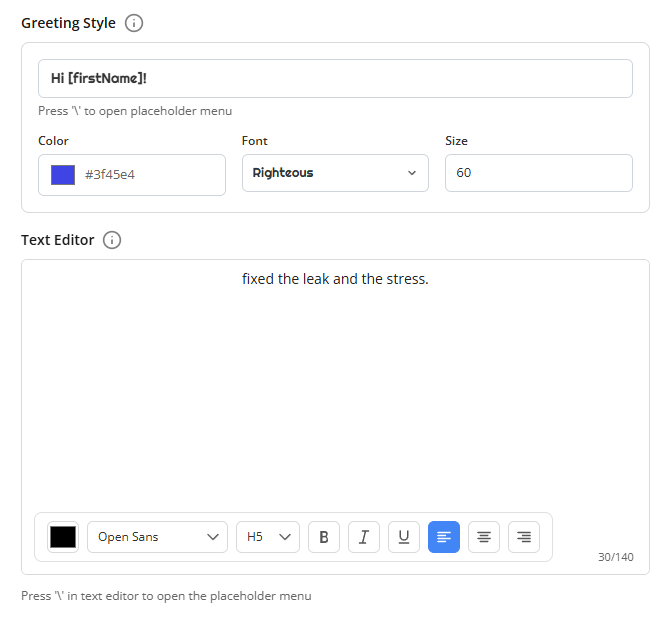
The Greeting Style section controls the personalized greeting text shown on the image.
The screenshot shows these editable fields:
Example greeting text shown:
[firstName]!
The screen also shows this note:
Press '\' to open placeholder menu
This indicates you can insert placeholders into the greeting.
Text
Enter the greeting text that should appear on the image.
Color
Choose the text color.
Font
Choose the font style.
Size
Choose the font size.
In the screenshot, the example values shown are:
#4c5becLibre Baskerville47Use this section to style the greeting so it stands out on the image.
Below the greeting is the Text Editor section.
This controls the message text shown on the image.
The screenshot shows example text like:
Hi
kept your systems running smooth.
This editor includes formatting controls such as:
It also shows a character counter in the screenshot.
The screen again notes:
Press '\' in text editor to open the placeholder menu
This means placeholders can also be inserted into the message text.
Use short text so the message fits well on the image and stays readable.
On the right panel, CrushPix includes preview tabs.
For custom images, the screenshots show 3 tabs:
These help you review how the CrushPix appears in different contexts.
The Adjust Image tab shows the main image preview.
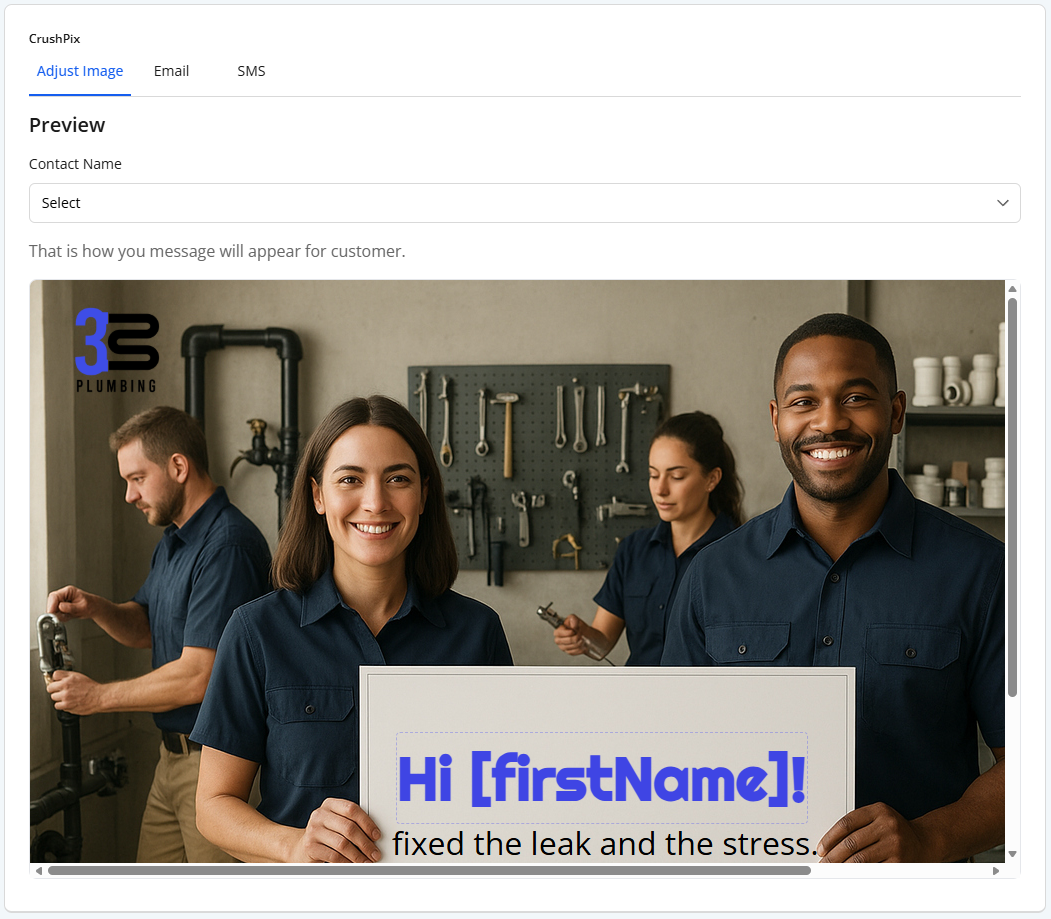
This preview includes:
The preview area lets you see how the personalized content appears on the image itself.
Use this tab to check:
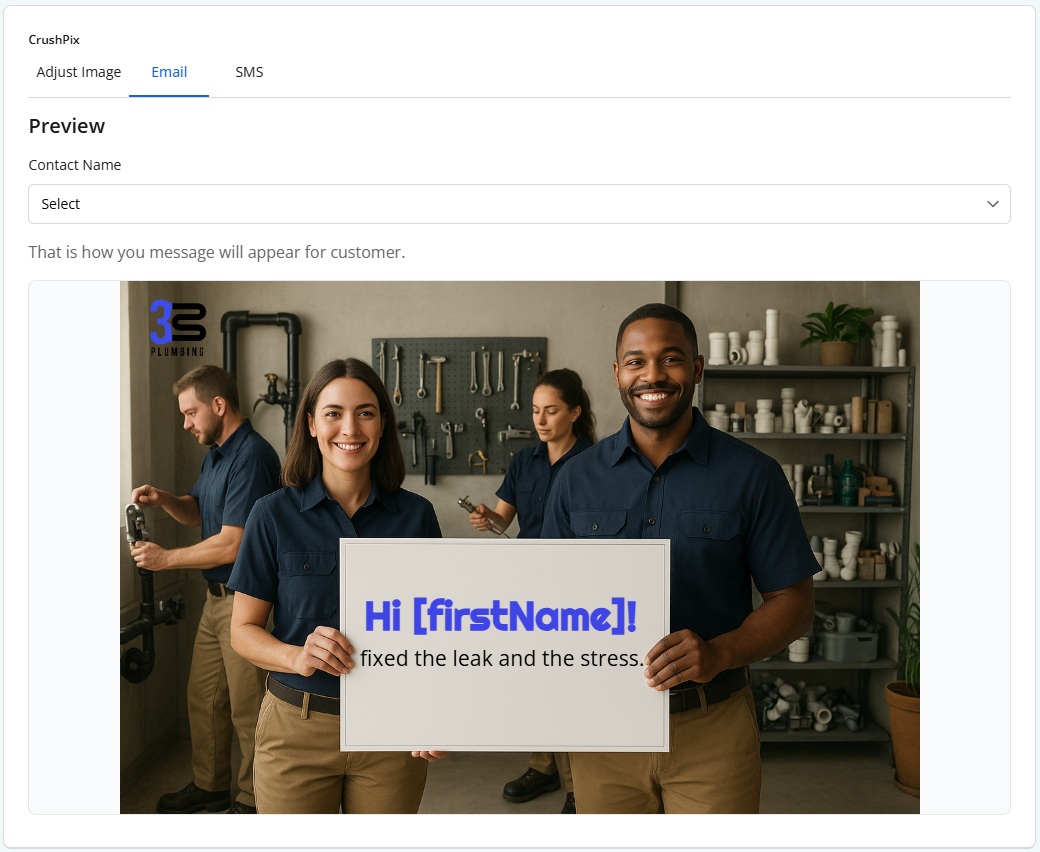
The Email tab shows how the CrushPix appears in an email-style view.
The screenshot shows:
Use this tab to review how the image may appear when included in an email request.
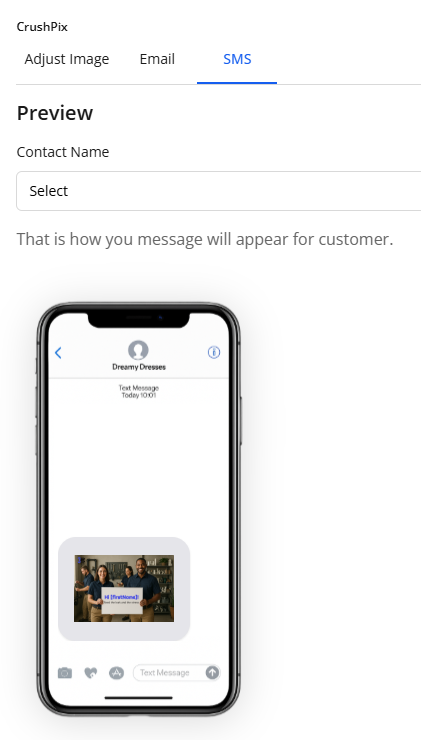
The SMS tab shows a phone-style preview.
The screenshot shows:
Use this tab to review how the CrushPix may appear in an SMS or MMS-style message.
If you do not want to start from a custom image, choose Templates.

When Templates is selected, the left panel changes to a template selection view.
The screenshots show these fields:
Example values shown:
Below the dropdowns, available templates are shown as selectable cards.
The screenshot shows a template example named:
Granite Pressure Washing
When a template is selected, the right panel shows a preview.
In the screenshots, the template mode preview includes:
This lets you review how the template looks before making it your own.
Below the selected template, the page shows this message:
Customize your template with a tap. Press the button to make it yours.
Then it provides a Customize button.
Use Customize when you want to turn the selected template into your own editable CrushPix.
Based on the flow shown in the screenshots, this appears to be how you start from a ready-made design and then personalize it.
A practical workflow based on the screenshots is:
Check:
Use a PNG with transparent background, as recommended in the uploader notes.
Shorten the greeting or message and review the preview again.
Use Templates instead of starting from a custom image.
Use the placeholder option shown in the notes:
Best for checking the core design layout.
Best for checking how the CrushPix may appear in email.
Best for checking how the CrushPix may appear in SMS or MMS.