
Learn how to create in-store review QR codes, connect them to a review link, preview and save them, then manage existing QR codes using the View, Edit, Download, and Delete options.
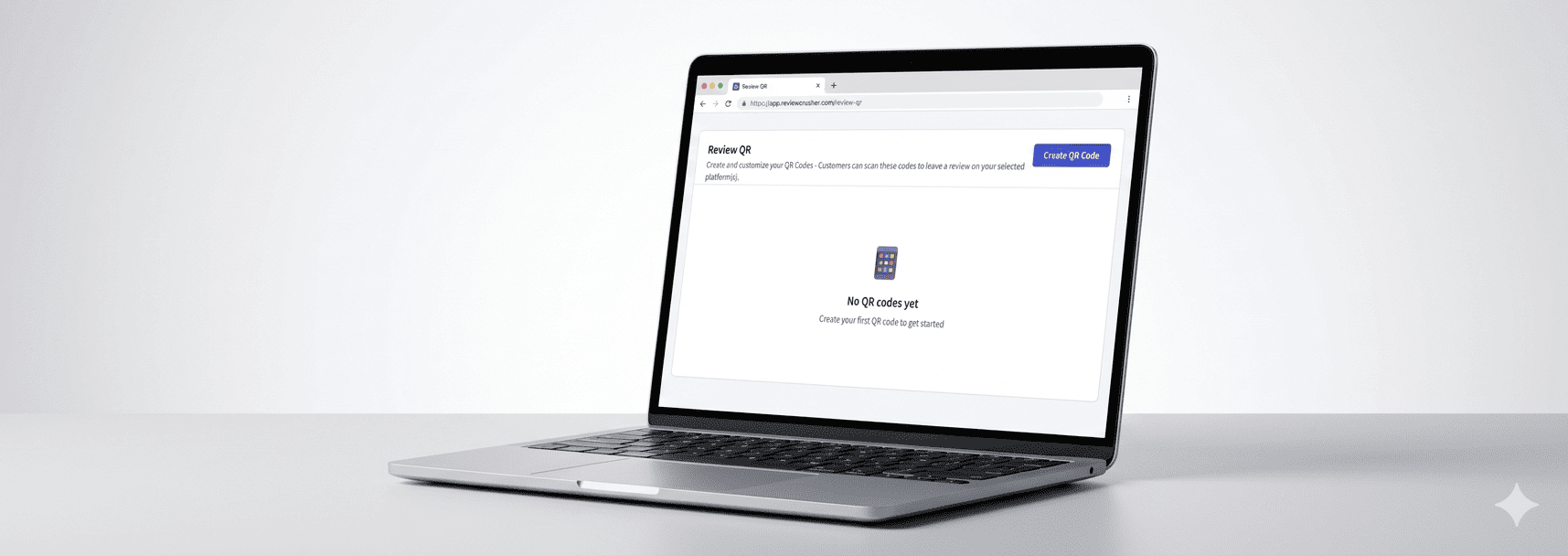
The In-Store Reviews page lets you create QR codes that customers can scan to leave a review on your selected platform.
This feature is useful when you want to collect reviews in person, such as at a front desk, checkout area, service counter, or reception space.
From the screenshots, this section appears as Review QR under Get More Reviews.
Go to:
Get More Reviews → In-Store Reviews

From this screen, you can:
The main In-Store Reviews page shows a table of your saved QR codes.
The visible table columns are:
Each row also includes a three-dot menu on the far right for more actions.
The internal name of the QR code.
The review link connected to that QR code.
In the screenshot, one row shows a dash (—) under Review Link Name, which suggests the linked review name may not always be shown or may not be assigned visibly in the list.
The date the QR code was last updated.
The number of times the QR code has been scanned.
This helps you monitor performance and usage over time.
To create a new one, click:
Create QR Code
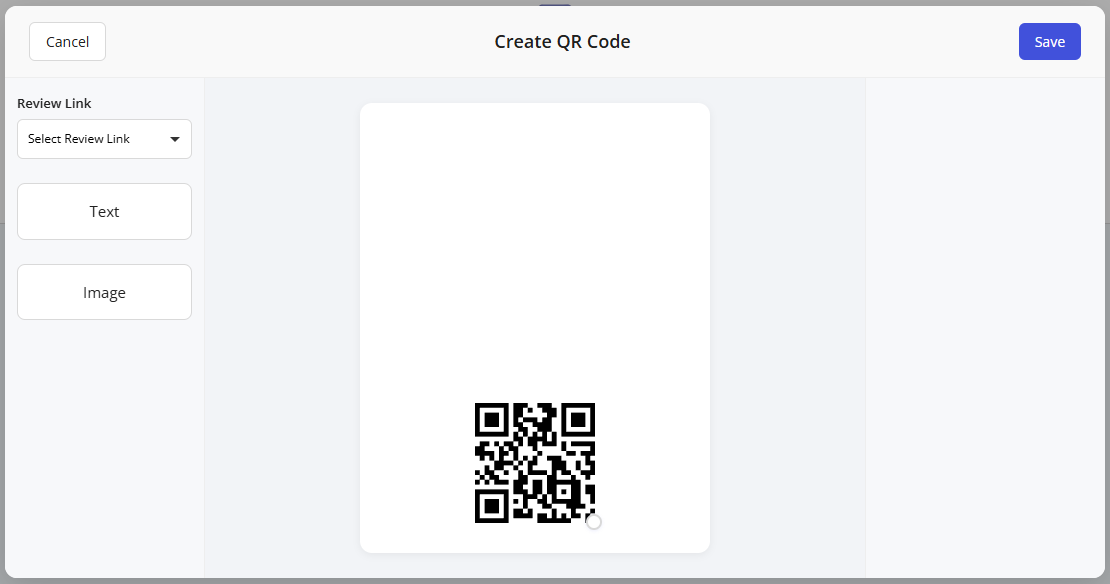
This opens the Create QR Code editor.
From the screenshot, this editor includes:
Inside the Create QR Code screen, the left side contains the available setup controls.
The center area shows a live preview of the QR code.
The visible options shown in the screenshots are:
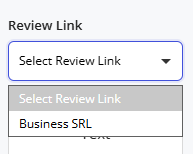
Use the Review Link dropdown to choose which review link the QR code should open when scanned.
This is the main connection between the QR code and the review destination.
Before saving, make sure you selected the correct review link.
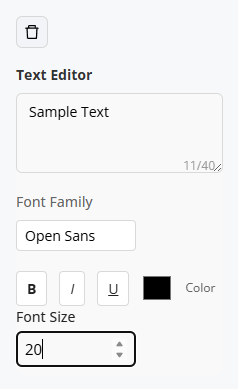
Below the review link selector, the editor shows two option buttons:
These appear to control the presentation or design mode of the QR layout.
The screenshots confirm that these are selectable options, but they do not show additional settings inside each one.
What is clear from the UI is that:
The center panel shows a live QR code preview on a large white layout card.
Use the preview to confirm that:
This preview helps you catch issues before saving.

When the QR code is ready, click:
Save
If you do not want to keep the changes, click:
Cancel
After saving, the QR code appears in the Review QR list on the main In-Store Reviews page.
Each QR code row includes a three-dot menu on the right side.
When opened, the screenshot shows these options:
These options let you manage the QR code after it has been created.
Use View to open and review the saved QR code.
This is useful when you want to check the QR code without making changes.
Use Edit to update an existing QR code.
This is the option to use when you need to change the QR code’s configuration or review link.
Use Download to save a copy of the QR code.
This is useful if you want to:
Use Delete to remove a QR code you no longer need.
Be careful before using this option, especially if the QR code is already being used in printed materials.
A practical workflow based on the screenshots is:
Once saved, each QR code remains visible in the Review QR list.
You can use the Total Scans column to monitor how often each QR code is being used.
This is helpful if you place different QR codes in different physical locations, such as:
By comparing scan totals, you can see which placements are getting attention.
Make sure a Review Link is selected first.
Open the three-dot menu and choose Download.
Open the three-dot menu and choose Edit.
Open the three-dot menu and choose View.
Open the three-dot menu and choose Delete.
Check the Total Scans column on the main In-Store Reviews page.
Customers scan the QR code using their phone while they are at your business.
After scanning, they are directed to the review link you selected.
This gives you a simple way to collect reviews from in-person visitors at the moment of interaction.