
Learn how to manually send review requests by email or SMS, choose a review link, add branding, attach a CrushPix, preview the message, and send a test before sending.
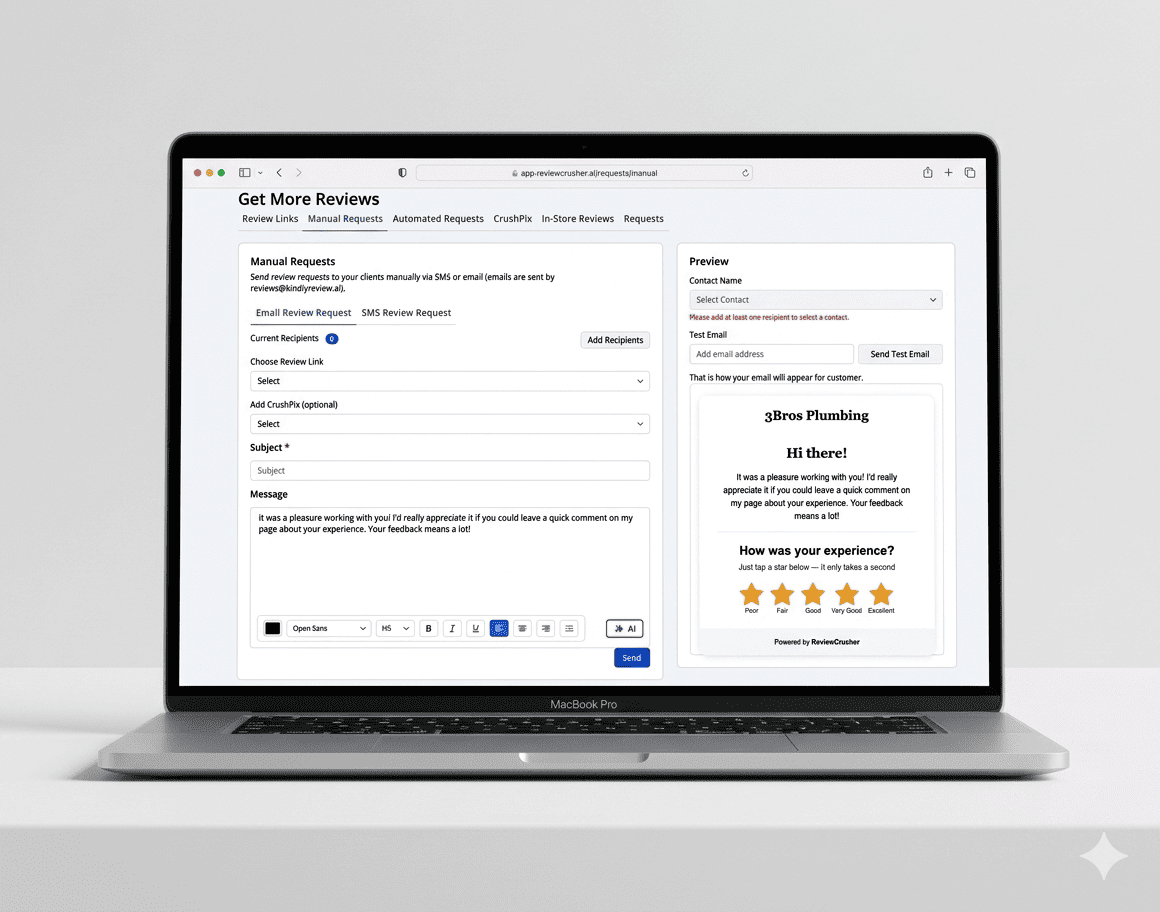
The Manual Requests feature lets you send review requests one at a time by email or SMS.

This is useful when you want to personally send a request to specific clients instead of relying on automated workflows.
The page includes two tabs:
You can switch between them depending on how you want to contact the customer.
Go to:
Get More Reviews → Manual Requests
From there, choose either:

From this screen, you can:
Use the Email Review Request tab when you want to send the review request by email.
The screen includes a message editor on the left and a preview panel on the right.
At the top of the form, you will see Current Recipients and an Add Recipients button.
Click Add Recipients to choose the contacts you want to send to.
The recipient count updates based on how many contacts have been added.
Once recipients are added, the Contact Name dropdown in the preview panel can be used to preview how the email will appear for a selected contact.
Suggested screenshot: Email Review Request page showing Current Recipients and Add Recipients.
Use the Choose Review Link dropdown to select which review link the recipient should receive.
This determines where the customer is directed when they interact with the review request.
Make sure you select the correct review link before sending.
Under Business Logo (optional), you can upload or change the logo that appears in the email.
The screenshot shows:
Use this section if you want the email to be more branded.
If you do not need a logo, you can leave this section optional.
Use Add CrushPix (optional) to include a CrushPix in the request.
A selected CrushPix appears in the field once chosen.
This can make the email more visually engaging.
The Subject field is required.
Enter the subject line your customer will see in their inbox.
Keep it short and clear so the purpose of the email is easy to understand.
Example ideas:
Use the Message editor to write the body of the email.
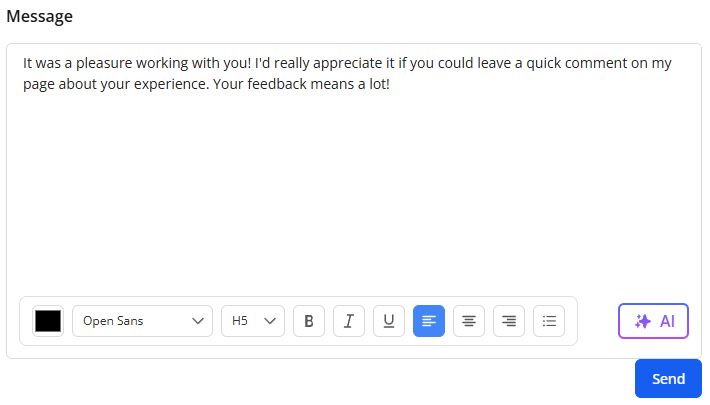
The screenshot shows a rich text toolbar with formatting controls, including:
There is also an AI button, which appears to help generate or improve the message.
Write a short message that:
The preview on the right updates to show how the email may look to the customer.
The right-side Preview panel shows how the email will appear.

It includes:
The screenshot shows a sample email preview with:
Use the preview to check formatting, branding, and message quality before sending.
In the preview panel, enter an email address in Test Email and click Send Test Email.
This helps you verify:
It is a good idea to send yourself a test before sending to customers.
Once the content looks correct, click Send.
Before sending, double-check:
Use the SMS Review Request tab when you want to send the review request by text message.
This view is similar to the email tab, but it is designed for a shorter message format.
At the top of the SMS tab, you will also see Current Recipients and Add Recipients.
Click Add Recipients to add the contacts you want to text.
In the screenshot, the preview panel shows this warning when no recipients are added:
Please add at least one recipient to select a contact.
This means you may need at least one recipient before the preview can fully show a selected contact.
Use the Choose Review Link dropdown to select the review link that will be included in the SMS.
Be sure to choose the correct one before sending.
Under Business Logo (optional), you can show or change the logo associated with the request.
This appears to be part of the overall branding setup for the message flow.
Use Add CrushPix (optional) to attach a CrushPix to the SMS request.
The screenshot shows a selected CrushPix already added.
This may help make the message more noticeable or branded in the preview.
Use the Message box to write the SMS request.
The screenshot shows a sample message like:
Hi [Contact's Name], thanks for choosing our service! Please leave us a review: [your review link]
The SMS message area also shows:
The screenshot also displays this note:
Press '\' in text editor to open the placeholder menu
This indicates that placeholders can be inserted into the message.
Because SMS should stay short and readable, keep the message simple and direct.
A good SMS usually includes:
The right-side Preview panel shows how the SMS may appear on a phone.

It includes:
The phone preview shows how the message might appear to the customer, including the review link.
Use this to check length, readability, and overall presentation.
In the preview panel, enter a phone number with country code into Test SMS.
Then click Send SMS to test the message.
This helps you confirm:
Once everything looks correct, click Send.
Before sending, confirm:
Make sure you have added at least one recipient.
The SMS preview specifically shows a warning when no recipients are present.
Check whether you entered:
Review the Choose Review Link dropdown before sending.
Use the preview panel to review formatting, branding, message length, and clarity before sending a live request.
The customer appears to receive:
The customer appears to receive: