
Quick answers to the questions customers ask most while getting their ReviewCrusher account live.

Quick answers for getting your account live.
Most pages open once your account is Live. Your Dashboard, Billing and Contact Support are always open. See How Your ReviewCrusher Account Goes Live.
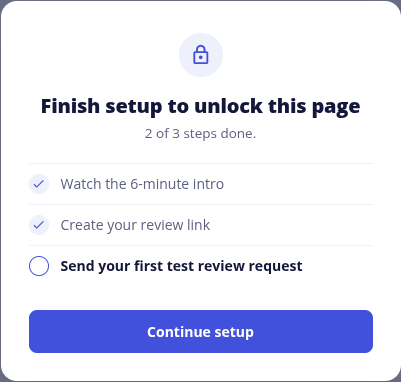
Your account needs an active plan first. Go to Billing, choose a plan, then return to your checklist.
Wait a couple of minutes, then refresh your Dashboard. Steps tick themselves when ReviewCrusher sees the real result.
The step completes at 90% of the video. Keep the page open while you watch. See Watch the 6-Minute ReviewCrusher Introduction.
Allow popups for this site and try again. See Connect Your Google Business Profile.
Google only gives a review link once your Business Profile is verified and published. Verify it in Google, then reconnect Google on Review Platforms. See Connect Your Google Business Profile.
You have a review link, but Google is not connected. Click Open Review Platforms and connect your Google Business Profile.
Our check found something on your review link to change, and the checklist tells you what. Click Open Review Links, make the change, then come back to your Dashboard. We check again when you return.
The next move is ours or a third party's. You do not need to do anything for that step.
Check your spam folder and the address on the contact, then send again. See Test Your ReviewCrusher Setup.
That is fine. Phase 2 never stops your account from being Live, and an item that does not apply can be marked Not Needed.
Please complete setup on a computer.
Back to My Onboarding Checklist
Last reviewed: November 13, 2026. Content owner: ReviewCrusher Customer Success.