
Learn how to use the Requests tab to view sent review requests, search the list, check delivery method and status, manage requests with the three-dot menu, and move through multiple pages of results.
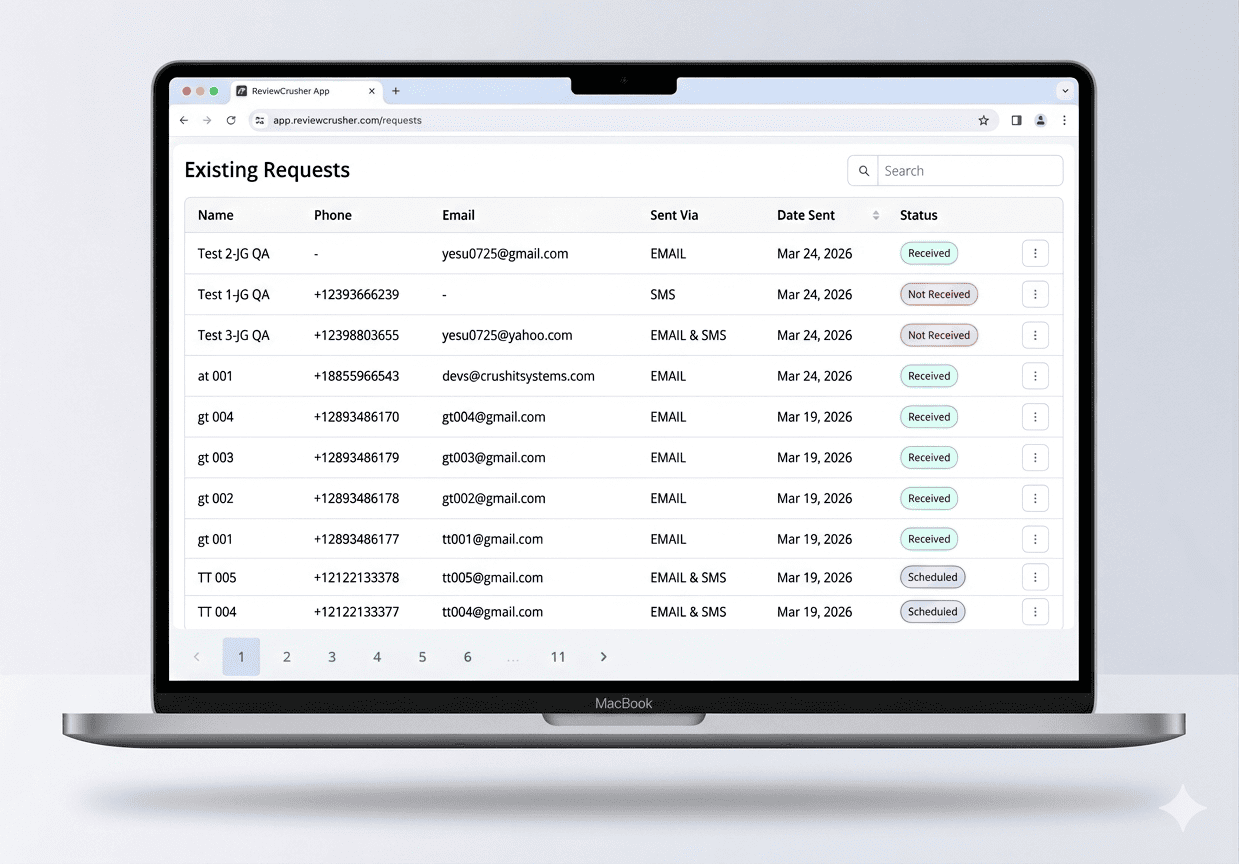
The Requests tab shows the review requests that have already been sent or scheduled.
This page gives you a searchable list of requests so you can review recipient details, see how the request was sent, check its status, and manage individual request entries.

Go to:
Get More Reviews → Requests
From this screen, you can:
The page shows a table labeled:
Existing Requests
The visible columns in the screenshot are:
Each row also includes a three-dot menu on the far right.
The contact or request name associated with the review request.
The phone number connected to the request, when available.
Some rows may show a dash (-) if no phone number is present.
The email address connected to the request, when available.
Some rows may show a dash (-) if no email address is present.
This shows how the request was sent.
The screenshot shows values such as:
This shows the date the request was sent.
This shows the current state of the request.
The screenshot shows these statuses:
Each status is displayed as a colored label.
At the top-right of the table, there is a Search field.

Use this to find a request more quickly without manually scanning the full list.
This is useful when you want to look up:
The Date Sent column shows a sort icon in the screenshot.
This suggests the request list can be sorted by sent date.
Use this when you want to review:
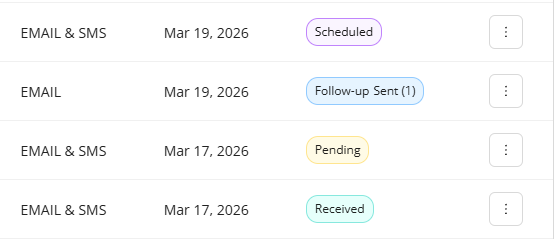
The screenshot shows several request statuses. Based on the visible UI, the page helps you quickly identify what happened with each request.
A Received status appears on multiple rows.
This indicates the request has been received.
A Not Received status appears on one row.
This indicates the request was not received.
A Pending status appears on one row.
This indicates the request is still in progress or awaiting completion.
A Scheduled status appears on multiple rows.
This indicates the request is scheduled rather than already completed.
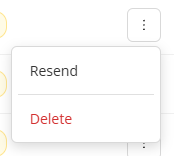
Each row includes a three-dot menu on the far right.
When opened, the screenshot shows these options:
These actions let you manage an individual request entry.
Use Resend if you want to send the request again.
This is useful when:
Before resending, review the row details first so you know whether the request was originally sent by:
Use Delete if you want to remove the request entry.
Be careful before deleting, especially if you may need the request history later for tracking or support purposes.
At the bottom of the page, the screenshot shows pagination controls.
Visible page controls include:
This means the Requests list can span multiple pages.
Use pagination to move through older or additional request records.
A practical workflow based on the screenshot is:
Use the Search field and check different pages using the pagination controls.
Open the three-dot menu and choose Resend.
Open the three-dot menu and choose Delete.
Check the Sent Via column. The screenshot shows possible values:
Use the Date Sent column and pagination controls.
The Requests page is useful for: