
Learn the basic setup steps new users should complete first, including review platforms, review links, CrushPix, automated requests, notifications, integrations, billing, A2P number setup, and support.
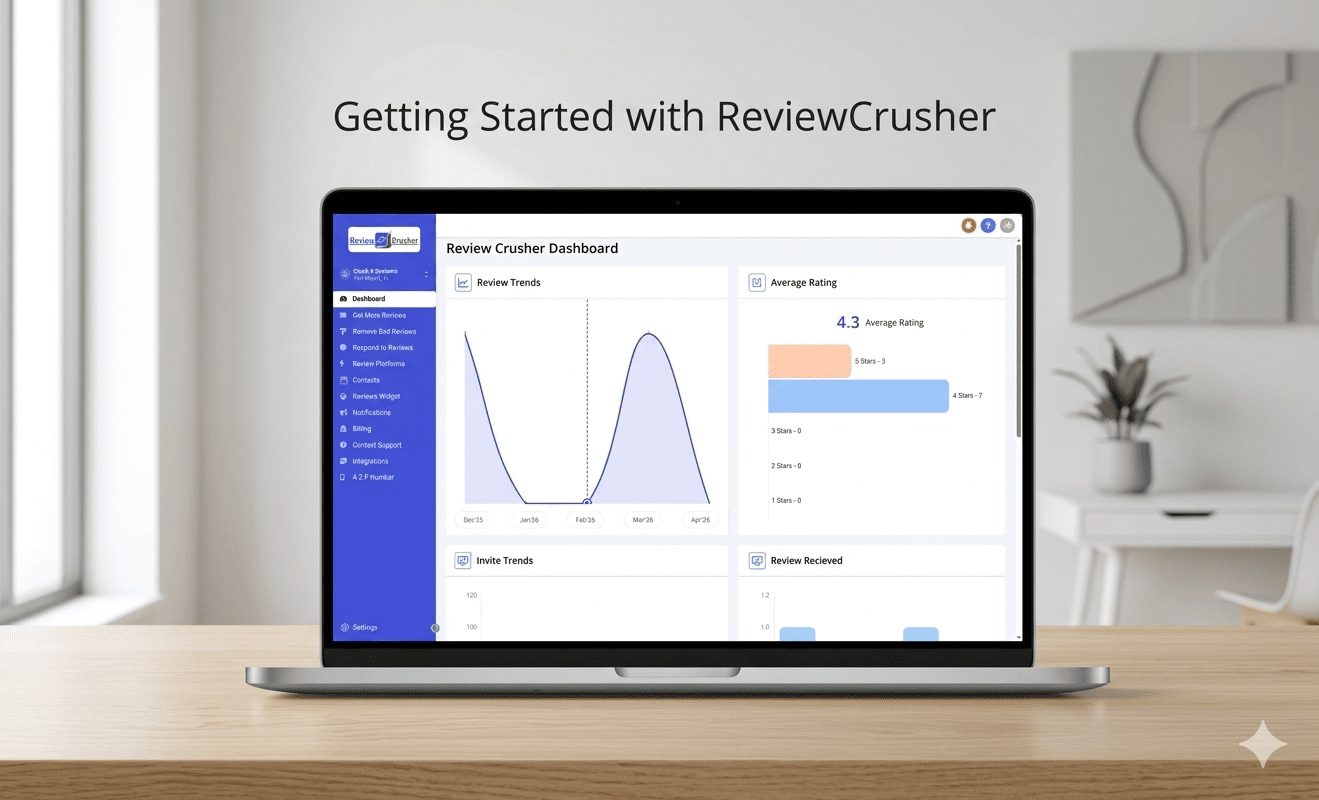
Welcome to ReviewCrusher.
Before you start sending review requests and managing your reputation, there are a few core setup steps you should complete first.
This article gives you a quick overview of the main items you should set up in order. For each item, use the linked help article for full instructions.
To get ReviewCrusher working properly, complete these steps first:
Before you can send customers to leave reviews, you need to connect at least one review platform.
This is where you connect the review destination your customers will use, such as your Google Business Profile or another supported platform.
Your review platform connection is used for:
Help article: Connect Review Platforms

After adding a review platform, create a review link.
A review link gives customers a place to rate their experience first, then directs them to a public review platform or private feedback flow depending on your settings.
Your review link is used in:
Help article: Create a Review Link

CrushPix helps you create branded images for review requests.
You can build one using a custom image or start from a template, then preview how it appears in email and SMS.
CrushPix can improve branding and make your review requests look more polished and recognizable.
Help article: Create and Customize CrushPix

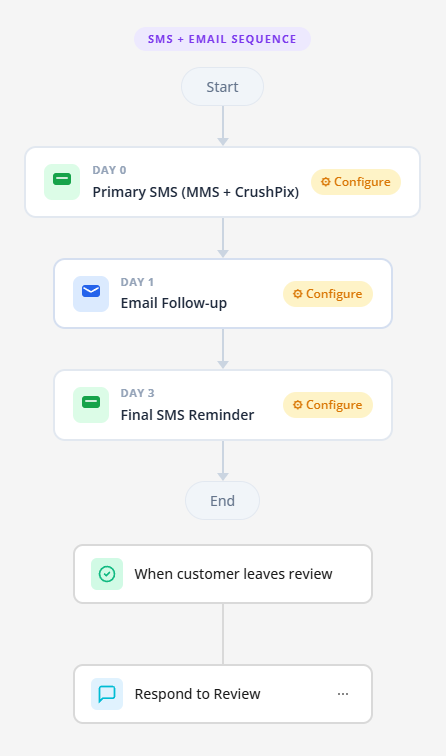
If you plan to send review requests automatically, configure your automated messaging early.
This includes reviewing the message sequences for:
and making sure each step is set up correctly.
Automated Requests are one of the main time-saving features in ReviewCrusher. If the messaging is not configured, your automation may not be ready when you need it.
Help article: Configure Automated Review Requests
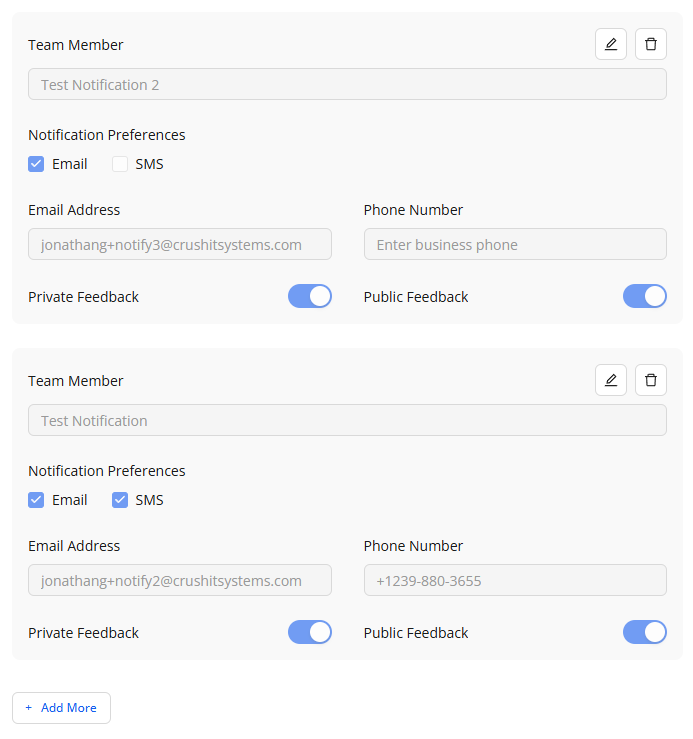
Notifications help you and your team stay informed when new ratings or feedback come in.
You can decide who gets notified, how they get notified, and whether they receive private feedback alerts, public feedback alerts, or both.
Without notifications, important customer feedback may be missed or handled too late.
Help article: View and Configure Notifications
Set up your integrations as early as possible so ReviewCrusher can work properly with the rest of your workflow.
This may include CRM, automation, or external system connections depending on your setup.
Integrations can affect how customers enter your review workflows and how your account connects to the tools you already use.
Help article: Not yet available
Add a payment method before you start using paid features or sending at scale.
This is especially important for accounts that will use messaging, credits, or other paid actions.
Without a payment method, some features may not be fully usable when you are ready to launch.
Help article: Not yet available
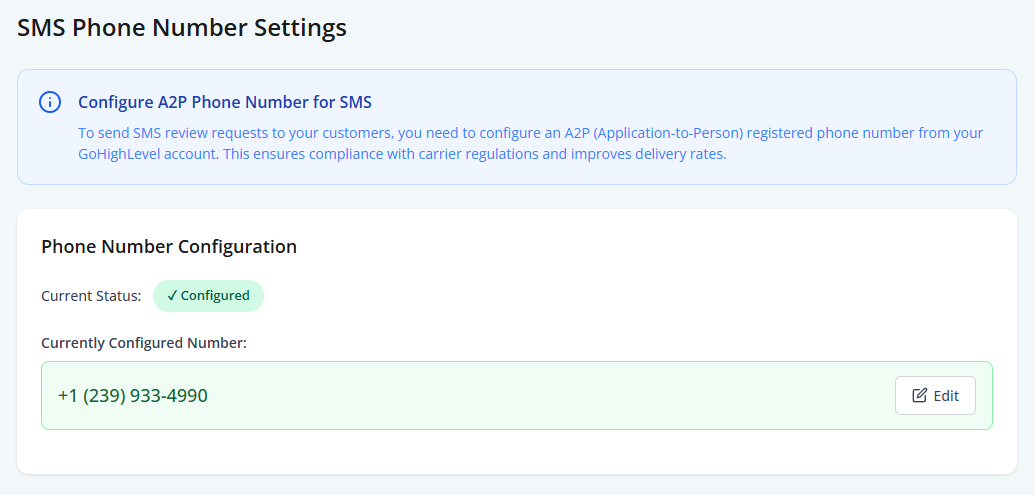
If you plan to send SMS review requests, make sure your A2P number is configured.
Important: A2P registration itself is completed during onboarding or the kickoff call. The A2P settings page is for configuring or updating the registered number afterward.
SMS review requests depend on the correct A2P number being set up for compliance and delivery.
Help article: Configure Your A2P SMS Number
If you are unsure about any part of your setup, contact support.
This is the best next step if:
You can also review the support option in the main navigation if you need direct assistance.
Before actively using ReviewCrusher, make sure you have completed the following:
Start with these articles first:
If something in your setup is missing or not working as expected, contact support before launching your review request workflows.
That helps avoid setup gaps later when you start sending requests to customers.